 CaptureGem
How to Use the Proxy Feature in CaptureGem (macOS)
Reading time: 8 minutes
Using a different computer? See the proxy guide for Windows or Linux.
CaptureGem's proxy mode records the video that plays in Google Chrome on your computer. You start Chrome through CaptureGem, open a stream, and click Record in CaptureGem's Proxy tab. Use it for private shows you can watch in your own browser, such as Chaturbate and Stripchat private shows, and for sites that CaptureGem can't record on its own.
Proxy mode saves the quality that the site's player is showing in Chrome. For public shows on a supported site, adding the model on the Record tab is easier, and Premium can record them automatically whenever the model goes live.
Prerequisites
- The latest CaptureGem. Every current version has the Proxy tab; you don't need a special download. Recent releases fixed several proxy problems, such as Stripchat "you have been blocked" pages and Stripchat proxy recordings that failed to convert.
- CaptureGem Premium. Recording from the Proxy tab is a Premium feature; without it, clicking Record shows "proxy recording is only available for premium users".
- Google Chrome, and the Terminal app that comes with macOS.
⚠️ VPNs can disrupt proxy mode
Turn off any VPN, and any VPN or proxy extension in Chrome, before you start Chrome with the proxy. A VPN or proxy extension replaces CaptureGem's proxy setting, so Chrome bypasses CaptureGem and nothing appears in the Proxy tab. Desktop VPN apps can also interfere with the connection between Chrome and CaptureGem. They also make security checks and "you have been blocked" pages from cam sites more likely.
If proxy mode stops working while a VPN is on, disconnect the VPN, fully close Chrome, and start Chrome with the proxy again.
Step 1: Install CaptureGem and open the Proxy tab
- Download the latest CaptureGem for macOS, or update the copy you have. The macOS download is a .dmg file.
- Open CaptureGem and click the Proxy tab.
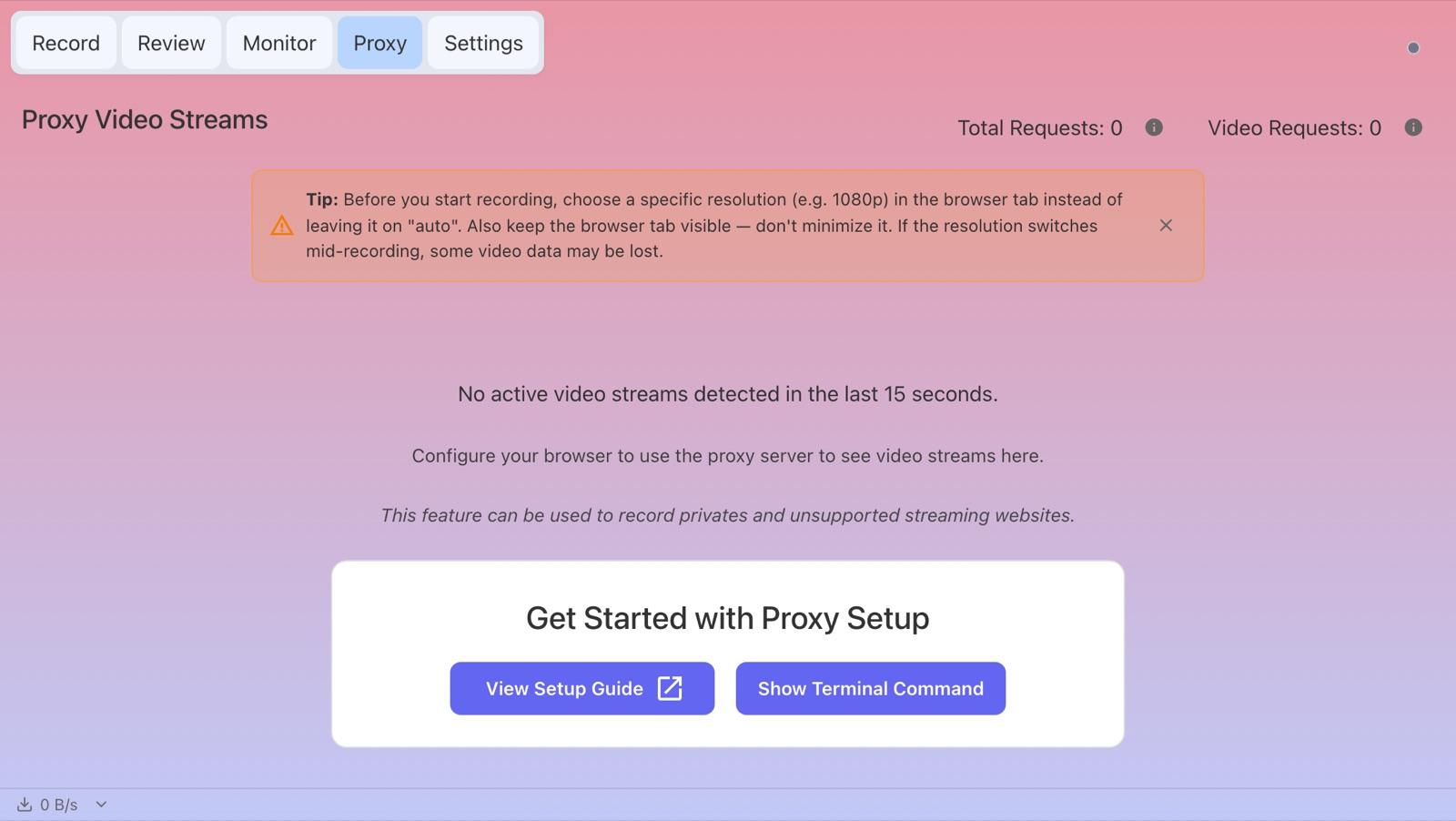
While no video is coming through the proxy, the tab shows Get Started with Proxy Setup with two buttons:
- View Setup Guide opens this guide.
- Show Terminal Command shows the command that starts Chrome through CaptureGem.
As soon as CaptureGem detects a stream, a table of streams replaces these buttons. They come back about 15 seconds after the last row disappears from the table.
Step 2: Quit Google Chrome completely
Chrome only uses CaptureGem's proxy when it starts fresh. If Chrome is still running, the command in Step 3 just brings the open Chrome to the front, without the proxy.
- Click Chrome in the menu bar and choose Quit Google Chrome, or press Cmd + Q while Chrome is in front. Closing the windows isn't enough on a Mac; Chrome keeps running.
- Check the Dock: there should be no dot under Chrome's icon. You can also open Activity Monitor and check that no Google Chrome process is listed.
Step 3: Start Chrome through CaptureGem
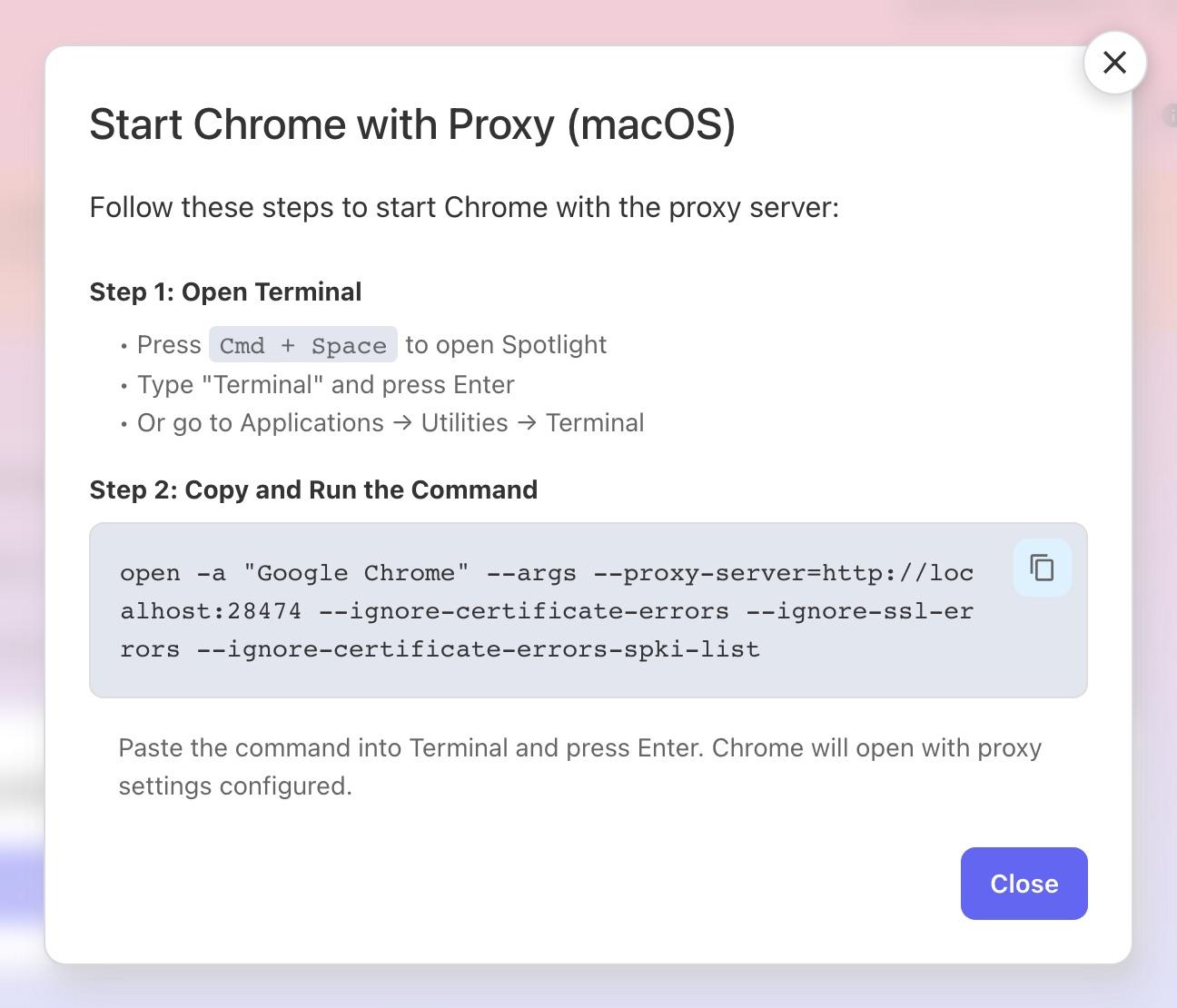
- In CaptureGem's Proxy tab, click Show Terminal Command. A Start Chrome with Proxy (macOS) window shows one command.
- Click the copy icon next to the command. CaptureGem copies it without showing a confirmation.
- Open Terminal: press Cmd + Space, type "Terminal" and press Return, or go to Applications > Utilities > Terminal.
- Paste the command into Terminal and press Return. Chrome opens with the proxy settings.
Once Chrome has opened, you can close Terminal; Chrome keeps running.
If Chrome was already running, the command only brings it to the front, and it doesn't use the proxy. Quit Chrome with Cmd + Q, check that the Dock shows no dot under its icon, and run the command again.
🔒 Use this Chrome only for cam sites, then quit it
To find and save the video, CaptureGem opens Chrome's encrypted connections on your own computer. It does this for every site except Chaturbate's and Stripchat's own pages, which pass through unchanged. For that to work, Chrome starts with a setting that makes it ignore certificate errors for as long as it runs. That's why most pages show Not secure or a crossed-out "https" in the address bar, and why Chrome may show a yellow bar about an unsupported command-line flag, --ignore-certificate-errors. Chaturbate's and Stripchat's own pages don't show these warnings.
While Chrome runs this way, it can't warn you about a fake or tampered website, and CaptureGem doesn't check the certificates of the sites it reads for Chrome either.
- Use this Chrome window only for cam sites. Don't use it for banking, email, or other accounts you care about.
- Chrome opens with your usual profile, including your saved sign-ins, so don't visit other sites in it.
- When you're done, quit Chrome completely and open it again the usual way. Chrome then checks certificates normally again.
Check that Chrome is using the proxy
Browse a few pages in the new Chrome window and watch Total Requests at the top of CaptureGem's Proxy tab. If the number goes up, Chrome's traffic is going through CaptureGem. If it stays at 0, see Troubleshooting below.
Step 4: Open the stream in Chrome
- In the Chrome window you started through CaptureGem, open the cam site and the show you want to record. Sign in to the cam site if you need to, for example for a private show.
- Let the video play. CaptureGem can only save video that Chrome downloads.
- If the player has a quality setting, choose a specific resolution, such as 1080p, instead of Auto. The Proxy tab shows the same tip: if the quality switches while you record, some of the video can be lost.
- Keep the tab visible. Don't minimize the window, and don't let the computer sleep. Players slow down or stop loading video in hidden tabs.
Step 5: Start recording
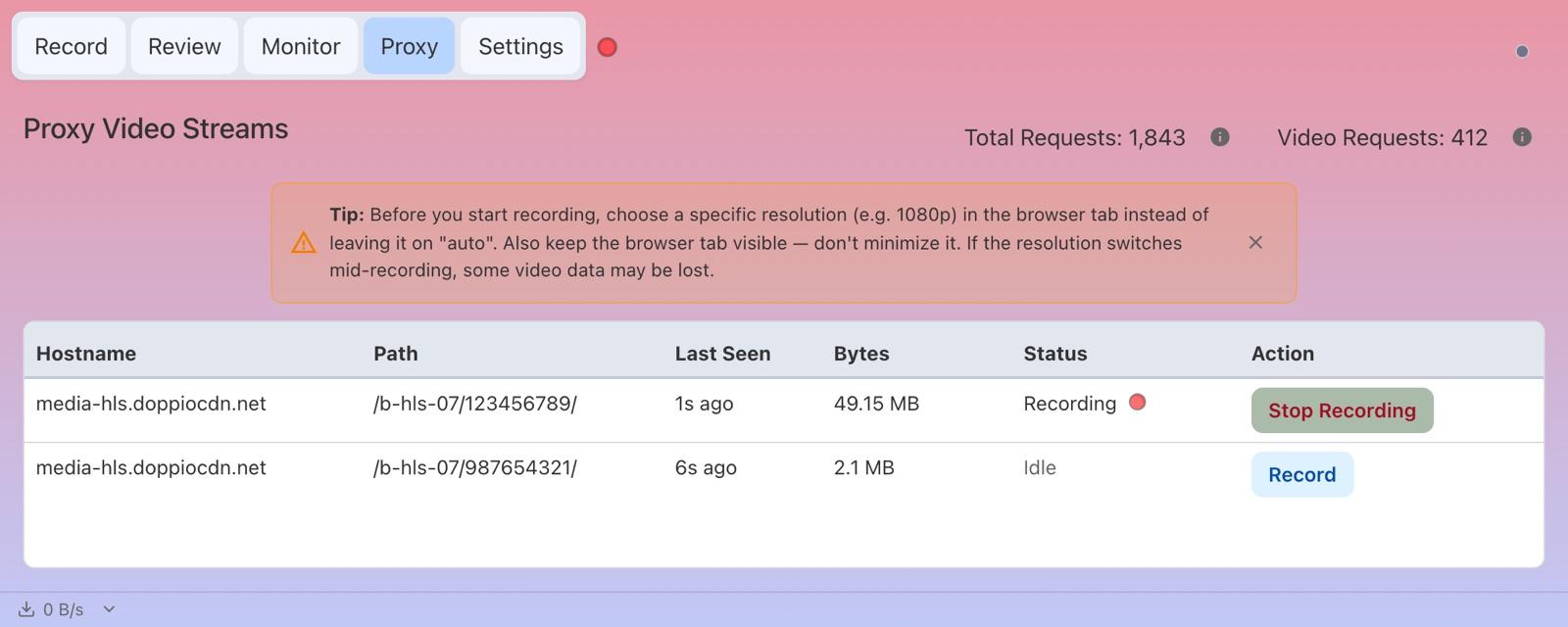
Switch to CaptureGem's Proxy tab. A few seconds after the video starts, a row for the stream appears:
- Hostname and Path show where the video comes from. Chaturbate video comes from a server ending in mmcdn.com, and Stripchat video from a doppiocdn server.
- Last Seen shows how long ago Chrome last downloaded a piece of this video.
- Bytes shows how much video has come through so far.
- Status shows Idle, or Recording while CaptureGem saves the stream.
Click Record on the stream's row. Its status changes to Recording and the button changes to Stop Recording. The recording starts when you click; CaptureGem can't save video from before that.
If several rows appear, record the one whose Bytes keep growing. Newer rows appear at the top. A row that isn't recording disappears 15 seconds after Chrome last downloaded video for it, for example after you leave the page.
Before you pay for a private show, open the model's public room and check that its row appears here, so you know the proxy is working. If a new row appears when the private show starts, record that row too.
Step 6: Stop the recording
Click Stop Recording when you're done. CaptureGem converts the video and adds it to the Review tab. To follow the conversion, click the small status dot in the top-right corner of CaptureGem (its tooltip says Transcoding Status). Long recordings, and recordings where the quality changed, can take a while to convert.
If no video reaches CaptureGem for 60 seconds, for example because the show ended, you closed the tab, or the player stalled, CaptureGem stops the recording by itself and converts it the same way. Shorter pauses don't end the recording: the row stays at Recording while Last Seen counts up, and recording continues when the video comes back.
After a recording stops, its row goes back to Idle. If the video is still playing, you can click Record again; that starts a new, separate recording.
Finished videos are saved in the folder set under Settings > Set Video Save Location.
Step 7: Check the model name and site
CaptureGem names a proxy recording after the address the video came from, so check its details in Review:
- Chaturbate: the site and the model's username are usually detected correctly.
- Stripchat: the site is detected, but the model name is a number (the stream's ID), such as 123456789.
- Other sites: check both the site and the model name.
To fix them:
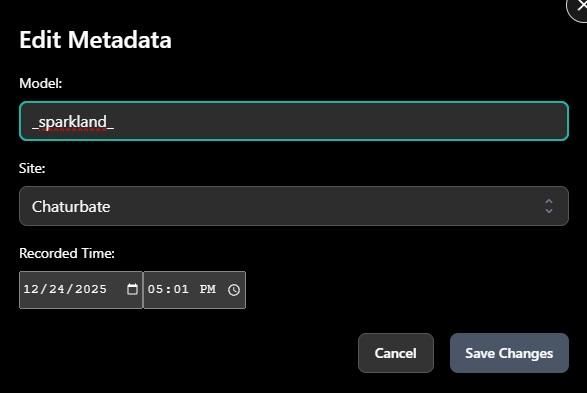
- In the Review tab, click the three dots on the recording and choose Edit Metadata.
- Set Model, Site and Recorded Time.
- Click Save Changes. The recording is then listed under that model. The file name stays the same.
For a Stripchat VR private show, set Site to StripchatVR; see the StripchatVR guide.
Troubleshooting
Chrome opens, but Total Requests stays at 0
Chrome was probably still running when you ran the command, so it opened without the proxy. Quit Chrome with Cmd + Q, check that the Dock shows no dot under its icon, and run the command again. You don't need to change any macOS permissions for this.
The Show Terminal Command button isn't showing
The button is hidden while the Proxy tab lists streams. Close the Chrome tab that is playing video and wait about 30 seconds for the button to come back. You can also copy the command from here:
open -a "Google Chrome" --args --proxy-server=http://localhost:28474 --ignore-certificate-errors --ignore-ssl-errors --ignore-certificate-errors-spki-list
Pages don't load at all in the proxy Chrome
This Chrome sends all of its traffic through CaptureGem, so if CaptureGem's proxy isn't running, no page loads. Chrome usually shows an error such as ERR_PROXY_CONNECTION_FAILED.
- Start CaptureGem, wait until its window opens, and reload the page.
- If CaptureGem is running and pages still don't load, its proxy may not have been able to start because another program is using port 28474. Quit CaptureGem, restart your computer, and start CaptureGem before Chrome.
- To browse normally in the meantime, quit Chrome completely and open it the usual way.
No streams appear in the Proxy tab
- Check Total Requests in the Proxy tab. If it doesn't go up as you browse, Chrome isn't using the proxy. Quit Chrome completely and start it through CaptureGem again (Step 3). The address bar doesn't tell you either way, because Chaturbate's and Stripchat's pages show no warning even when the proxy works.
- Turn off any VPN, and any VPN or proxy extension in Chrome, then restart Chrome with the proxy. See the VPN warning under Prerequisites.
- Make sure the video is actually playing. Video Requests only goes up while Chrome downloads video.
- The site may use a kind of player that proxy mode can't record; see Which sites work below.
The Stop Recording button disappeared
CaptureGem stopped the recording by itself because no video arrived for 60 seconds, for example because the show ended, the tab was closed, or the player stalled. The recording is converted and added to Review as usual. If the show is still running, reload the page and click Record again; this starts a new recording.
The recording doesn't appear in Review
- Wait for the conversion to finish. Click the status dot in the top-right corner to see its progress, and whether it failed.
- If the recording isn't in Review or in the conversion queue, the downloaded video may still be in the folder set under Settings > Set Proxy Files Location. Finished videos go to the folder set under Set Video Save Location.
- Make sure the drive has enough free space.
- Premium users can send a failed recording to CaptureGem support from the app.
Chrome shows "Not secure" or a warning bar
That's expected in proxy mode; see the note Use this Chrome only for cam sites, then quit it in Step 3. Use this Chrome window only for cam sites, and quit it when you're done.
Stripchat or Chaturbate shows a security check or "you have been blocked"
Update CaptureGem to the latest version, which sends Stripchat's and Chaturbate's own pages straight through without changing them. Turn off your VPN, then reload the page.
Which sites work
Proxy mode has special handling for Chaturbate and Stripchat, and these are the sites it is tested with, including private shows and Stripchat VR private shows started from a headset.
Other sites whose player loads the video in small pieces (HLS, which most cam sites use) should also work, including sites CaptureGem can't record on its own. Players that stream over WebRTC or WebSockets, such as ManyVids Live, can't be recorded this way. To record public ManyVids Live shows, use the built-in ManyVids site instead.
Related Guides
- Recording Stripchat VR - Use proxy mode to record VR private shows you start from your headset
- Windows Guide - Start Chrome with the included script
- Linux Guide - Start Chrome with a terminal command
If you run into problems or have questions, ask in our Discord server.