 CaptureGem
How to Use the Proxy Feature in CaptureGem (Windows)
Reading time: 5 minutes
How to Use the Proxy Feature in CaptureGem (Windows)
Looking for other platforms? See the macOS guide for instructions using Terminal commands, or the Linux guide.
CaptureGem's proxy feature allows you to record private shows and access content from sites that may not be directly supported. This feature routes your browser traffic through CaptureGem, enabling you to record any video stream you can view in Chrome. This feature also works as an alternative method for public recordings, unsupported sites, or downloading saved recordings from cam sites.
Prerequisites
Before you begin, make sure you have:
- CaptureGem version 2.13.1 or later installed
- Google Chrome browser installed
- The proxy-enabled version of CaptureGem unzipped to a new folder
Step 1: Prepare CaptureGem
- Unzip CaptureGem to a new folder on your computer.
- Close any other version of CaptureGem that is currently running. Make sure to click Exit CaptureGem to fully close the application.
- Open the new version of CaptureGem from the folder you just unzipped.
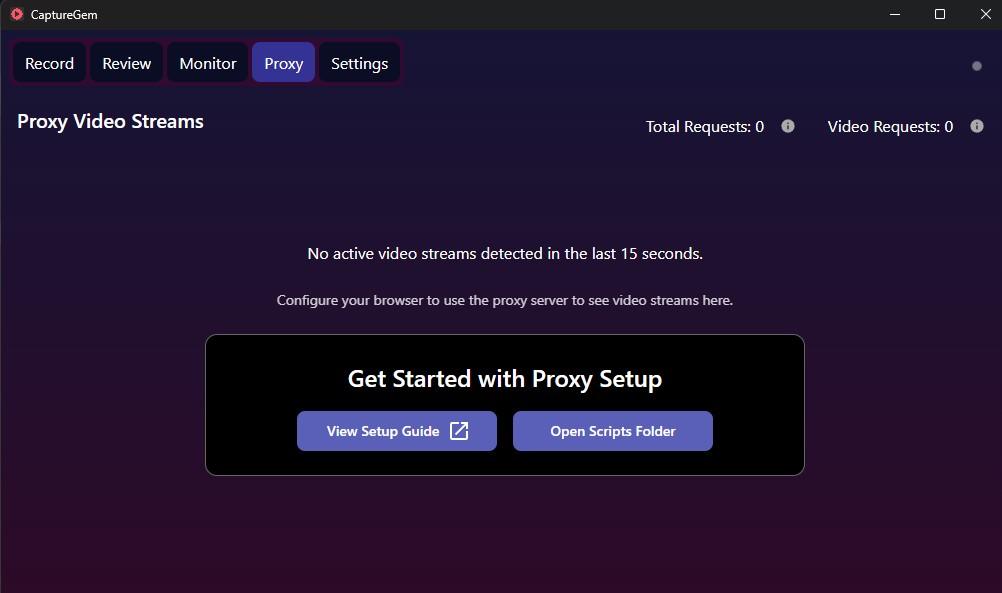
- Verify the version: Go to Settings and confirm the version shows 2.13.1 or later. You should also see a new Proxy tab in the application interface.
Step 2: Close Google Chrome Completely
Important: You must completely close Google Chrome before proceeding. This includes:
- Closing all Chrome windows
- Closing all Chrome tabs
- Ensuring Chrome is not running in the background
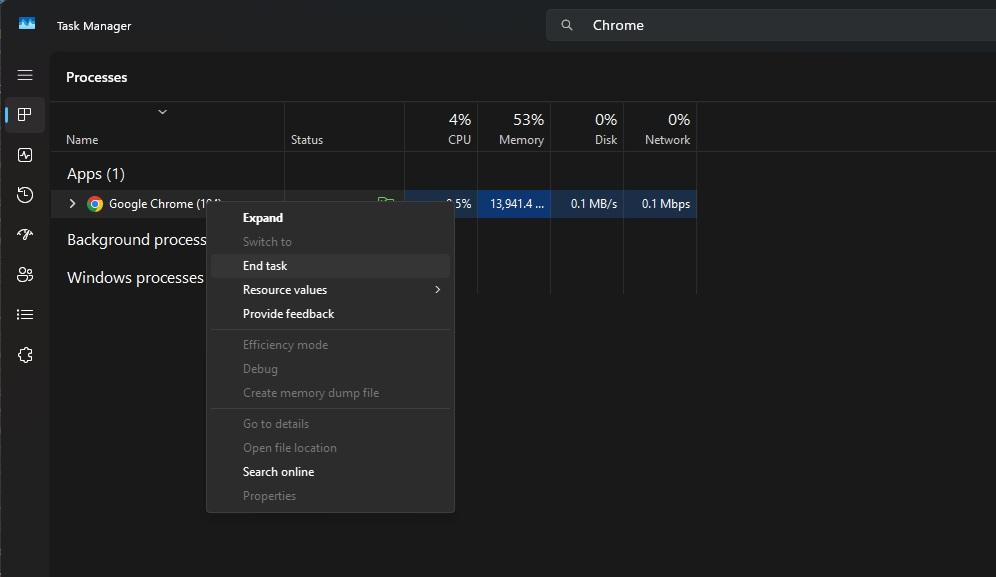
You can verify Chrome is closed by checking the Task Manager (press Ctrl + Shift + Esc) and ensuring no Chrome processes are running. You can also select it and press End Task if it is still running.
Step 3: Start Chrome in Proxy Mode
- Navigate to the CaptureGem folder you unzipped earlier.
- Look for the
user_scriptsfolder inside the CaptureGem directory. - Double-click on
start-chrome-with-proxy.batto launch Chrome in proxy mode.
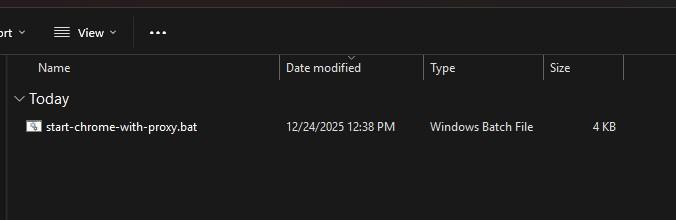
Chrome will now start with all network requests routed through CaptureGem as a proxy.
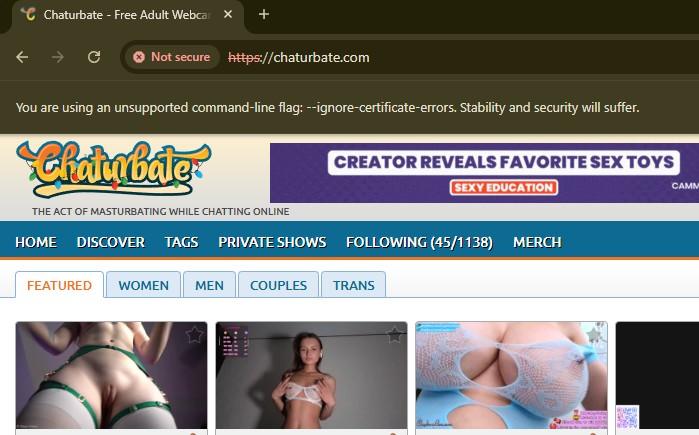
Expected Behavior: When Chrome starts in proxy mode, you may see warnings or lines crossed out through the HTTPS address bar. This is normal and expected behavior when using a proxy. Your connection is still secure, but Chrome displays these warnings because it's routing through a local proxy.
Step 4: Start Watching a Video Stream
- In Chrome (now running in proxy mode), navigate to any cam site or video streaming service.
- Start watching any video stream you want to record. This can include:
- Private shows on Chaturbate or Stripchat
- Public streams on any cam site
- Saved recordings on cam sites
- Streams from unsupported sites
Step 5: View Streams in CaptureGem
- Switch back to CaptureGem.
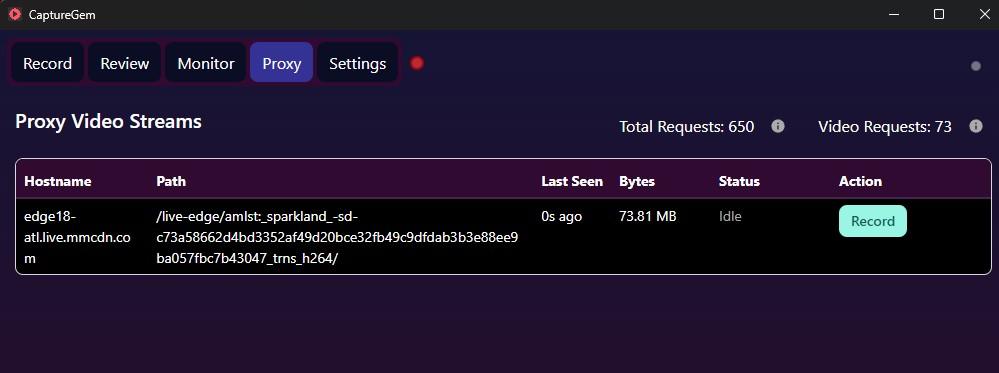
- Navigate to the Proxy tab.
- You should see entries appear in the table as Chrome makes requests for video streams.
- Each stream you're viewing will be listed in the Proxy tab with relevant information.
- Click the record button (or start button) next to the stream entry.
- The recording will appear in the Proxy tab while it's active.
Step 6: Stop Recording
- To stop a recording, click the stop button (or the same button you used to start) next to the stream entry in the Proxy tab.
- CaptureGem will stop recording and begin transcoding the video. You can check the transcoding status by clicking the grey or green circle icon in the top right.
- Once transcoding is complete, the recording will appear in the Review tab.
- The final video file will be saved to your configured output folder.
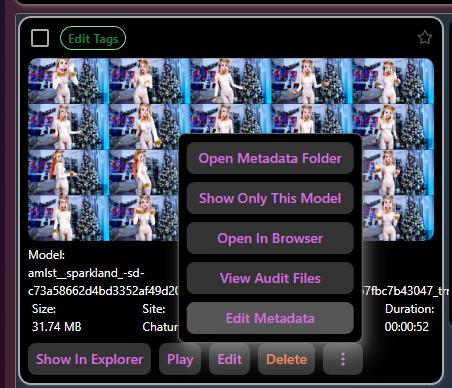
- In the Review tab, you can modify the metadata for the recording. You can do this by clicking the three dots and selecting "Edit Metadata".
Step 7: Modify and Fix the Metadata
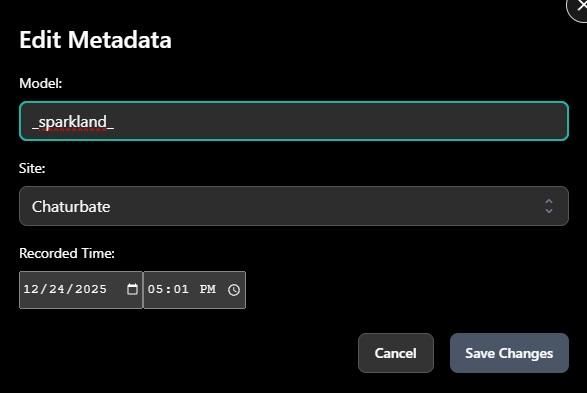
Currently, the metadata is not automatically set correctly for the proxied recording. You will need to modify and fix the metadata manually.
- In the Review tab, you can modify the metadata for the recording. You can do this by clicking the three dots and selecting "Edit Metadata".
- You can change the model username, site, and date of the recording.
- Once you are done, click the Save button to save the metadata.
Troubleshooting
Chrome Won't Start in Proxy Mode
- Make sure Chrome is completely closed before running the batch file.
- Check that you're running the batch file from the correct CaptureGem folder.
- Try running the batch file as Administrator (right-click > Run as administrator).
No Streams Appear in Proxy Tab
- Make sure Chrome is running in proxy mode (you should see HTTPS warnings).
- Verify you're actually watching a video stream in Chrome.
- Check that CaptureGem is running and the Proxy tab is visible.
Recordings Don't Appear in Review Tab
- Wait for transcoding to complete. This process may take some time depending on the video length. You can click the grey or green circle icon in the top right to monitor the transcoding status.
- Check your output folder settings in CaptureGem Settings.
- Ensure you have sufficient disk space available.
HTTPS Warnings in Chrome
- These warnings are expected and normal when using the proxy feature.
- Your connection is still secure; Chrome displays these warnings because traffic is routed through a local proxy.
Tips for Best Results
- Test with public streams first before attempting private recordings to familiarize yourself with the process.
- Keep CaptureGem running while using Chrome in proxy mode.
- Don't close Chrome while recordings are in progress.
- Monitor disk space to ensure you have enough storage for your recordings.
Supported Sites
The proxy feature has been tested with:
- Chaturbate (including private shows)
- Stripchat (including private shows)
- CamSoda
- BongaCams
It should also work with:
- Any cam site that streams video through standard HLS protocols
- Saved recordings on cam sites that use streaming for playback
- Unsupported sites that weren't previously recordable
Related Guides
- macOS Guide - Instructions for using the proxy feature on macOS with Terminal commands
- Linux Guide - Instructions for using the proxy feature on Linux with terminal commands
If you encounter any issues or have questions, please contact support in our Discord server.