 CaptureGem
How to Set Up Solana with Phantom Wallet
Updated
This guide explains how to set up a Solana wallet using Phantom Wallet to receive crypto payouts from CaptureGem. You can use this wallet for any future payouts or refunds of CaptureGem token or USDC.
This guide covers:
- Setting up a Solana Wallet using Phantom Wallet (Browser Extension).
- Adding your Solana payout address to your CaptureGem account settings.
Step 1: Set Up a Solana Wallet Using Phantom Wallet on Google Chrome
You need a Solana-compatible wallet to receive your payments. Phantom Wallet is a popular choice for Solana, available as both a browser extension and a mobile app. These steps are based on Phantom's official guide for creating a new wallet via Google Chrome.
Prerequisites
- A supported web browser (e.g., Chrome, Firefox, Brave, Edge) for the extension, or a smartphone (iOS or Android) for the mobile app. However, these instructions only cover Google Chrome.
- Internet connection.
Wallet Setup Steps
- Install Phantom Wallet:
- Browser Extension: Visit phantom.app and click "Download" to select your browser (Chrome, Firefox, Brave, Edge, etc.).
- Click "Add to Chrome" or the equivalent for your browser.
- Browser Extension: Visit phantom.app and click "Download" to select your browser (Chrome, Firefox, Brave, Edge, etc.).
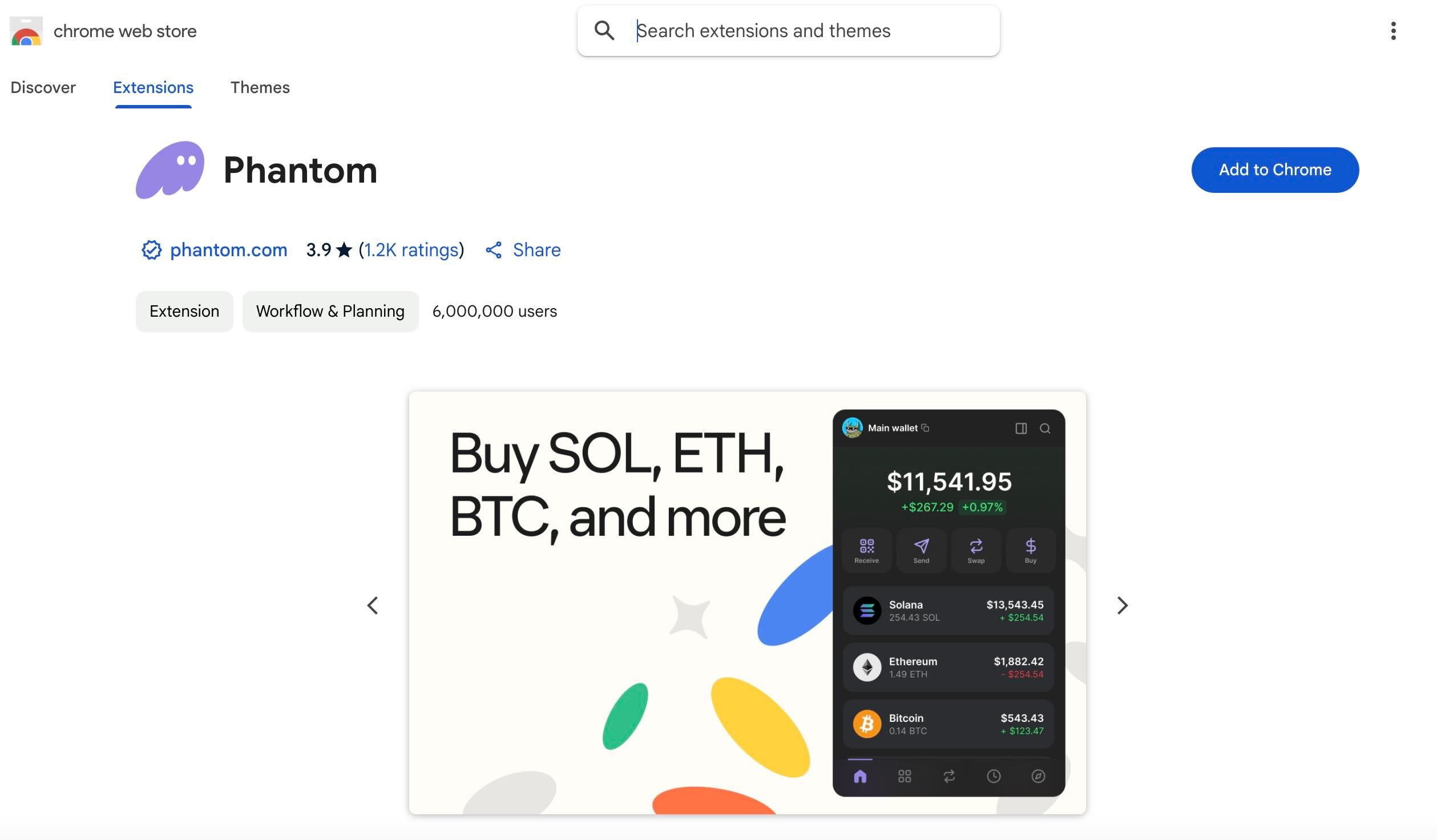
- Follow the prompts to add the extension.
- After installation, pin the Phantom icon to your toolbar for easy access.
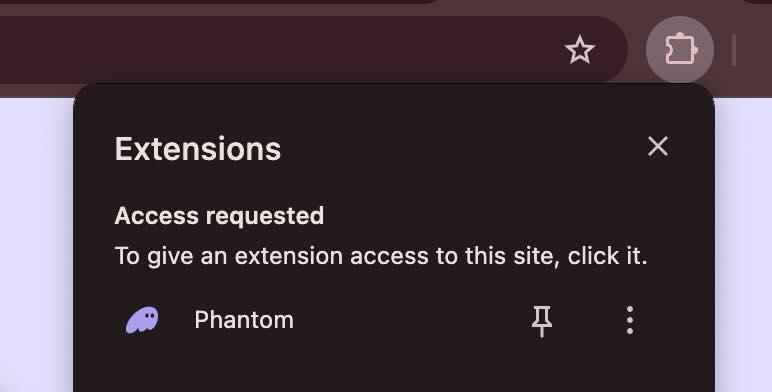
- After installation, click the Phantom icon in your browser toolbar to open it.
- Create a New Wallet:
- Open the Phantom extension.
- From the welcome screen, click "Create a new wallet."
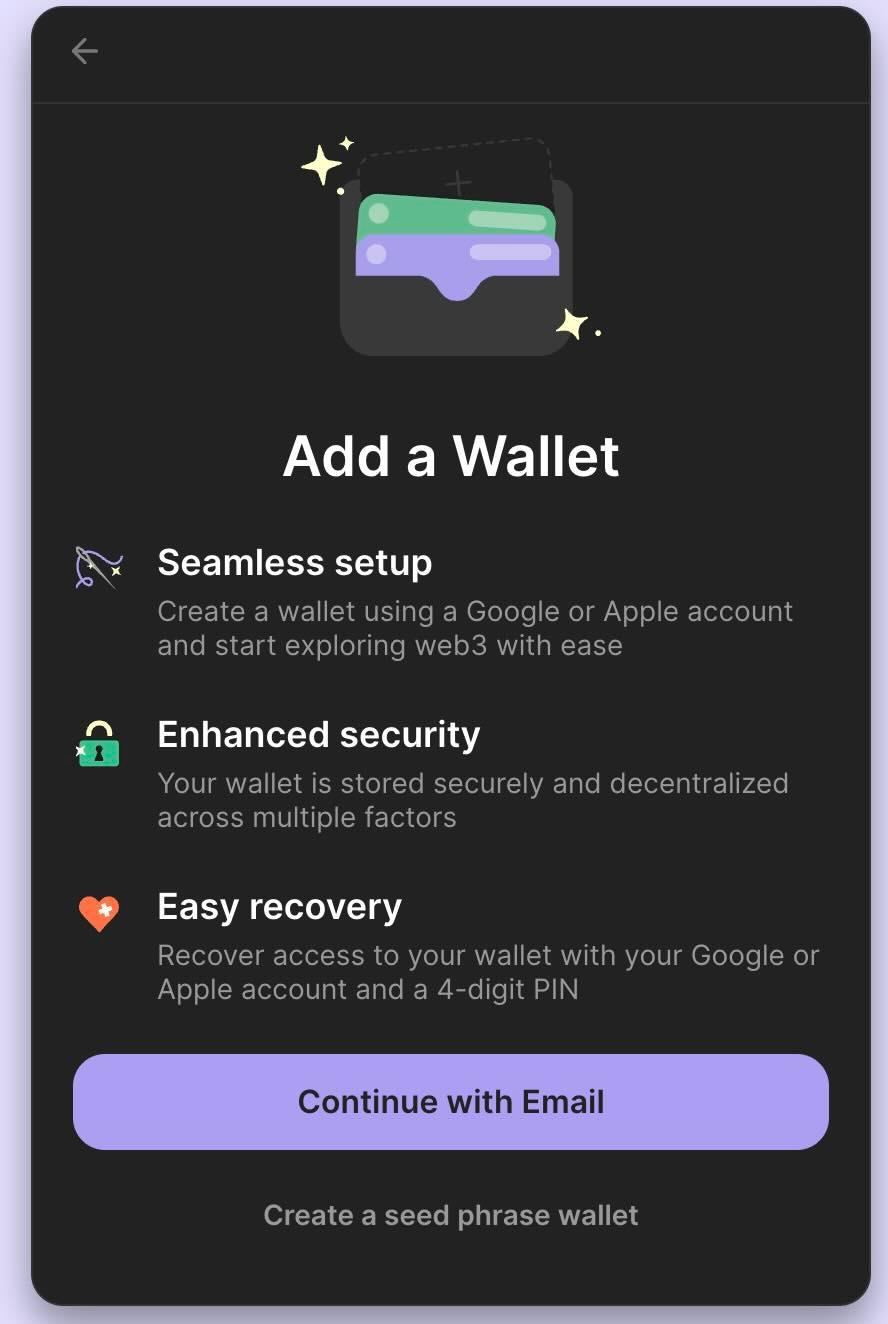
- You can now continue with Email or with generating a mnemonic phrase. You can choose either method.
- After signing in with Google or Apple, or after Creating the Mnemonic, you will be prompted to create a pin.
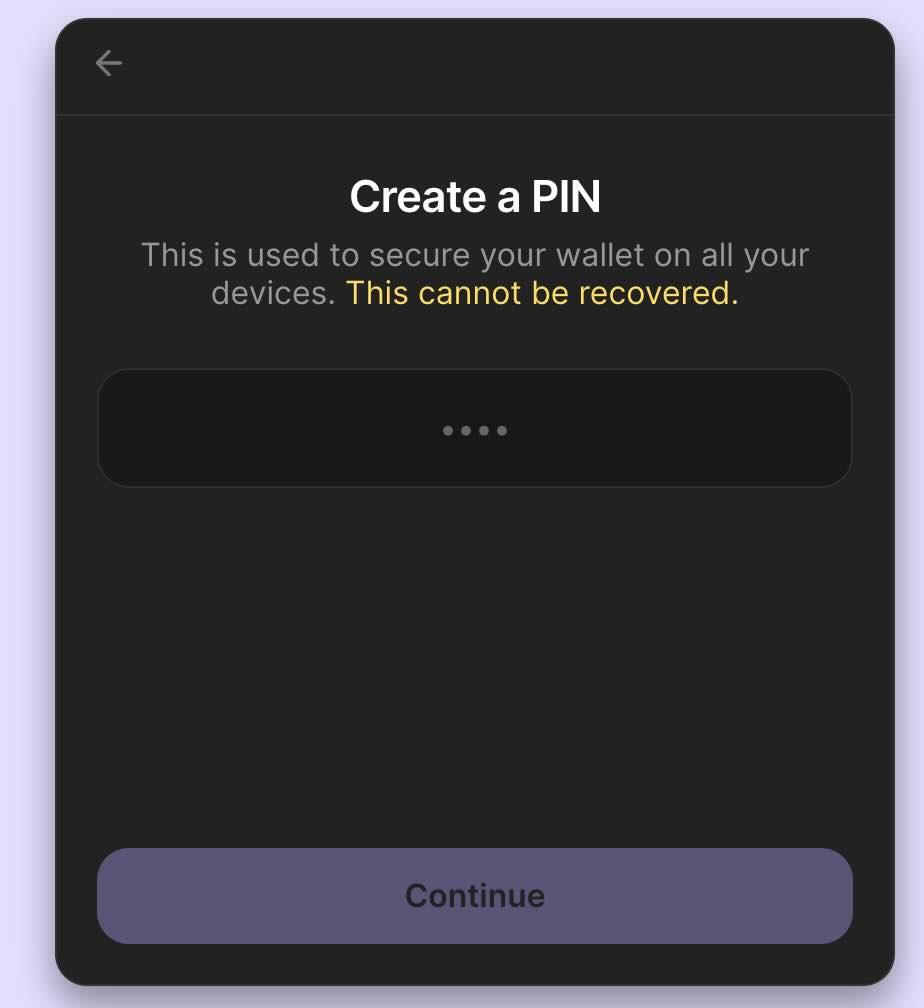
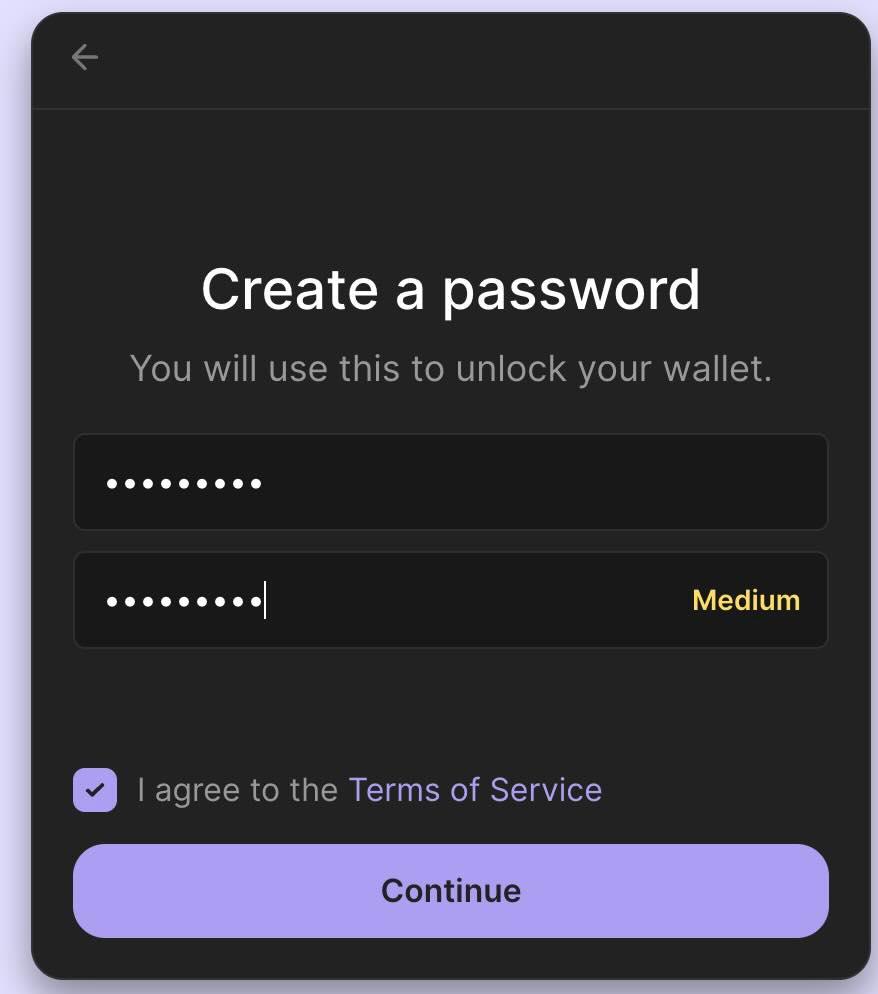
- Create a password and confirm it. This password secures your wallet on your device.
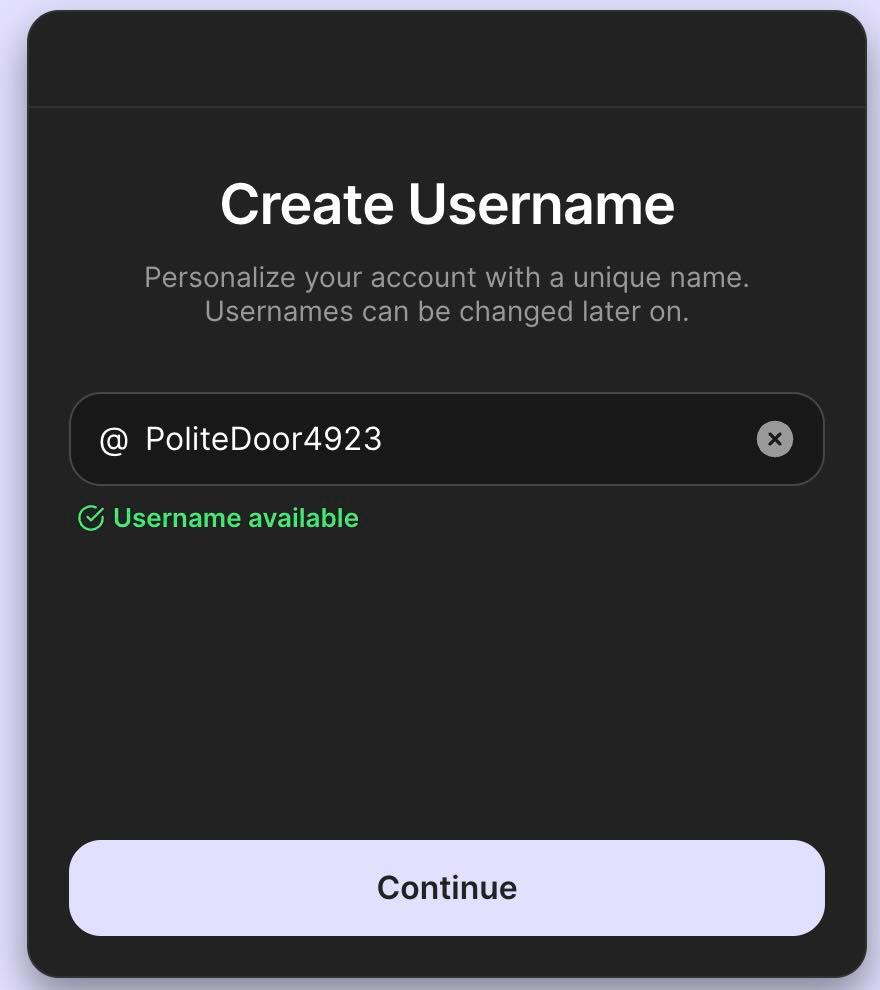
- You will be prompted to create a username.
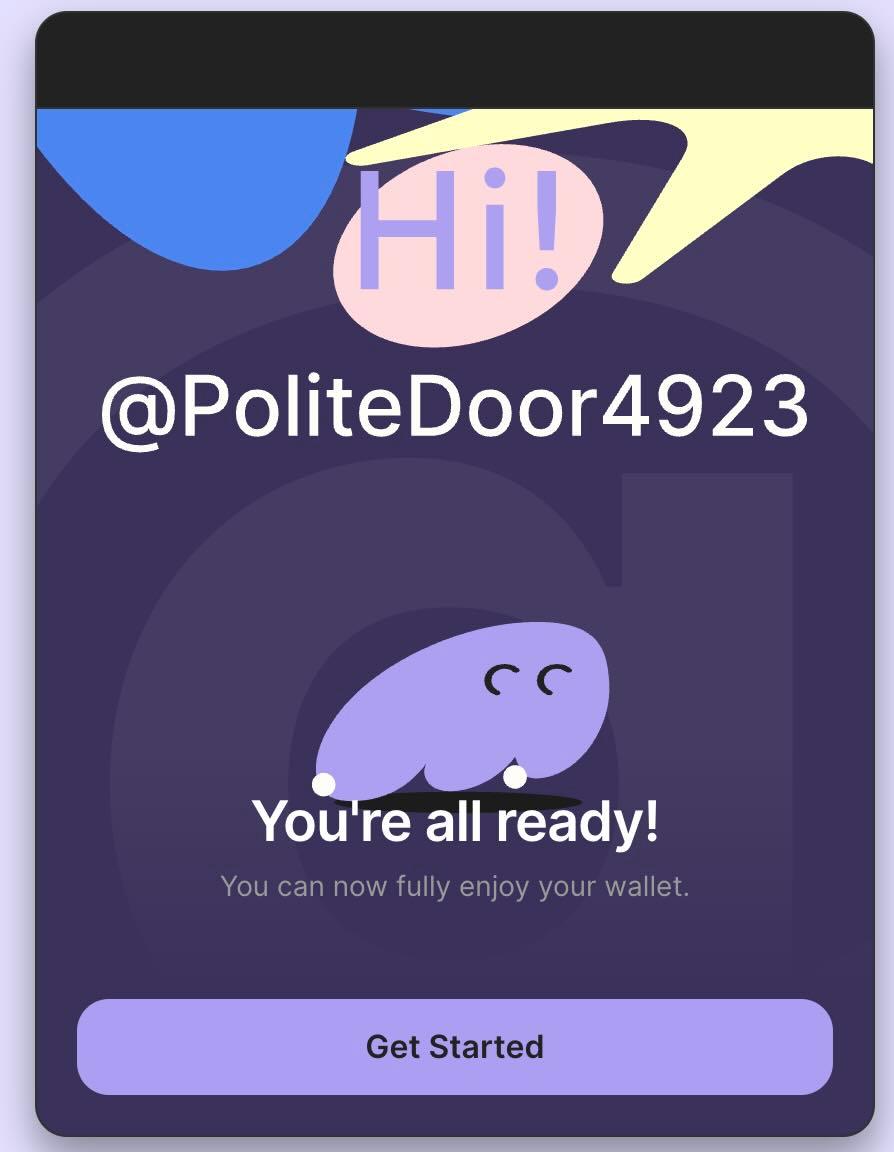
- You will now see the welcome screen. Click Get Started
- Find Your Solana Receiving Address:
- Once your wallet is set up, Phantom displays your wallet’s main screen. You may need to first open the browser extension in the top-right of Google Chrome.
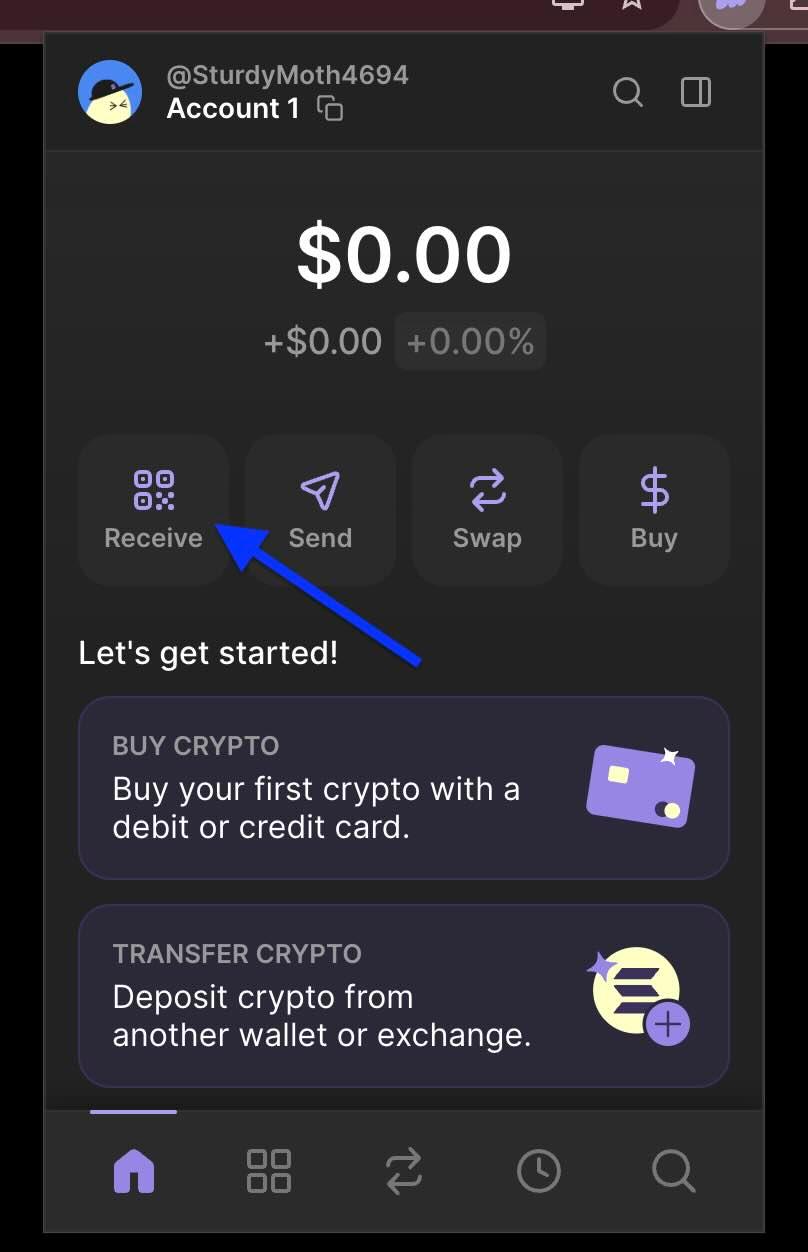
- Click on Receive to find your Solana address. Then press the copy button next to Solana. This will copy it to your clipboard.
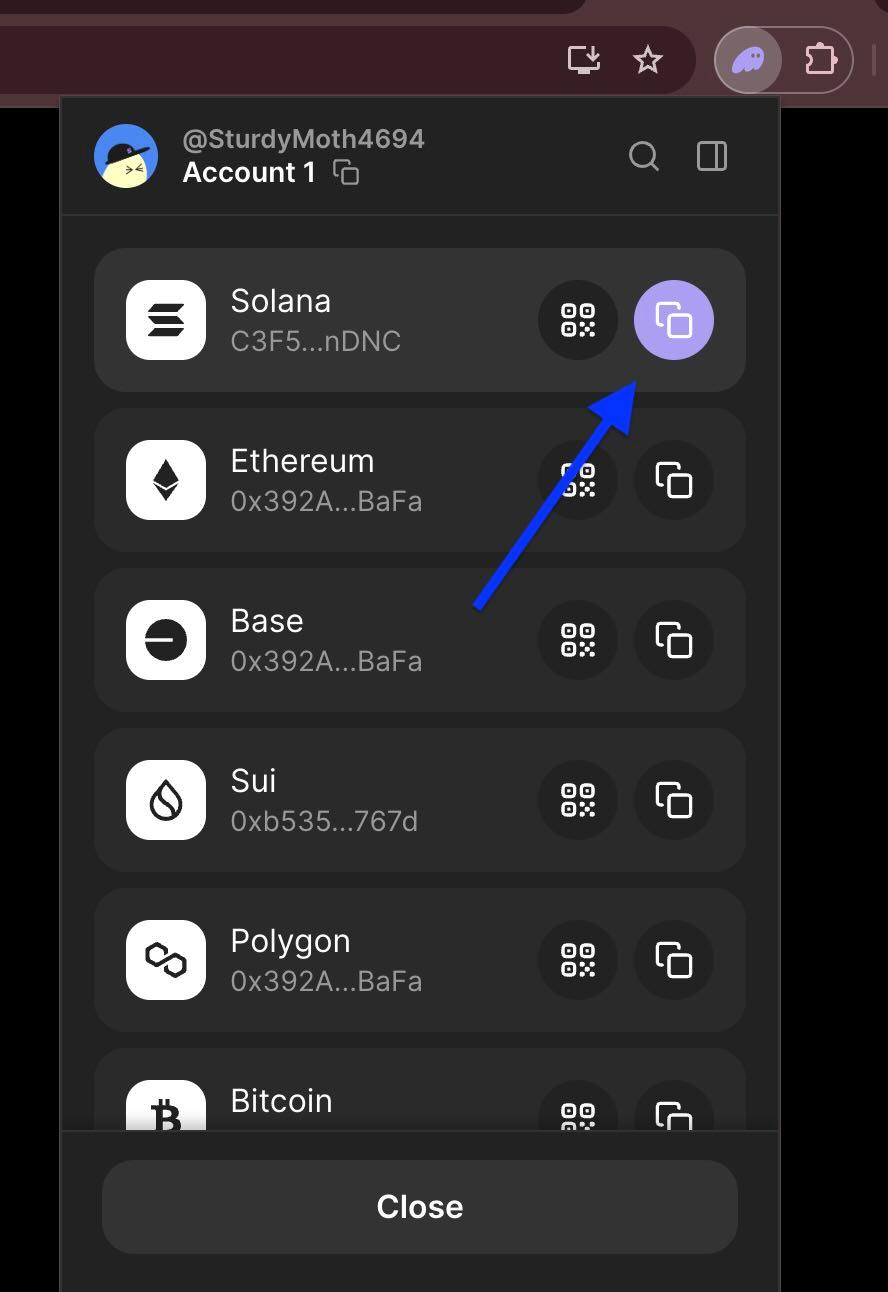
This is the address you need for your CaptureGem payouts.
Congratulations, you are now ready to accept payments!
*Note: Your Solana address can receive SOL and Solana-based tokens like CaptureGem, USDC, and other SPL tokens. You don’t need to add CaptureGem or USDC manually to receive payments.
Step 2: Add Your Solana Address to Your CaptureGem Account
You need to specify the wallet address where to send your tokens.
- Log in to CaptureGem: Log in to your account. If you don’t have one, sign up for a free account.
- Enter Payout Address: Look for a field labeled "Payout Wallet."
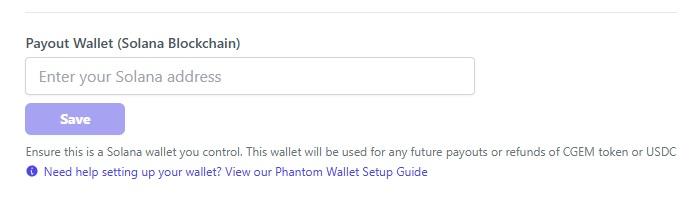
- Paste Your Address: Paste the Solana address you copied from Phantom Wallet (Step 1) into this field.
- Save Changes: Confirm and save your updated settings.
Important Security Reminders
- Never share your Secret Recovery Phrase. Anyone with it can access your funds.
- Store your recovery phrase securely offline. Do not take screenshots or store it digitally where it could be hacked.
- Beware of phishing scams. Neither Phantom Wallet nor CaptureGem will ever ask for your Secret Recovery Phrase or private keys.
- Keep your Phantom Wallet extension/app updated to ensure security and performance.
- Use a strong password and consider enabling biometrics or auto-lock for added protection.
Congratulations! Your Phantom Wallet is set up, linked to your CaptureGem account, and you can now receive your tokens.