 CaptureGem
How to Record From XCams: A Quick Guide
Record public XCams live streams with CaptureGem 2.14.9 or later on Windows, macOS, and Linux. XCams recording uses a browser window built into the CaptureGem desktop app, and XCams' own viewing limits for guests still apply.
1. Install CaptureGem
Download CaptureGem for Windows, macOS, or Linux and open the desktop app. XCams appears under Select Website in CaptureGem 2.14.9 or later. Use 2.14.13 or later so the hidden XCams player stays silent while recording; the sound is still saved in the recording. Keep the CaptureGem window open while recording: CaptureGem records XCams in a browser window inside the desktop app, so the standalone recorder daemon cannot record XCams on its own.
2. Copy the room link
Open the broadcaster's public room on XCams and copy the address from your browser's address bar, such as https://www.xcams.com/chat/model_username/. Profile links such as https://www.xcams.com/profile/model_username/ work too. The username is the last part of the address.
XCams and XLoveCam are separate sites, so choose the entry that matches your room link.
3. Add the stream
On the Record tab, paste the link into Enter URL or Username in the Add Stream panel. CaptureGem selects XCams for you. You can also choose XCams under Select Website and type just the username. Leave Monitor Only off so the stream is saved, then click Add Stream.
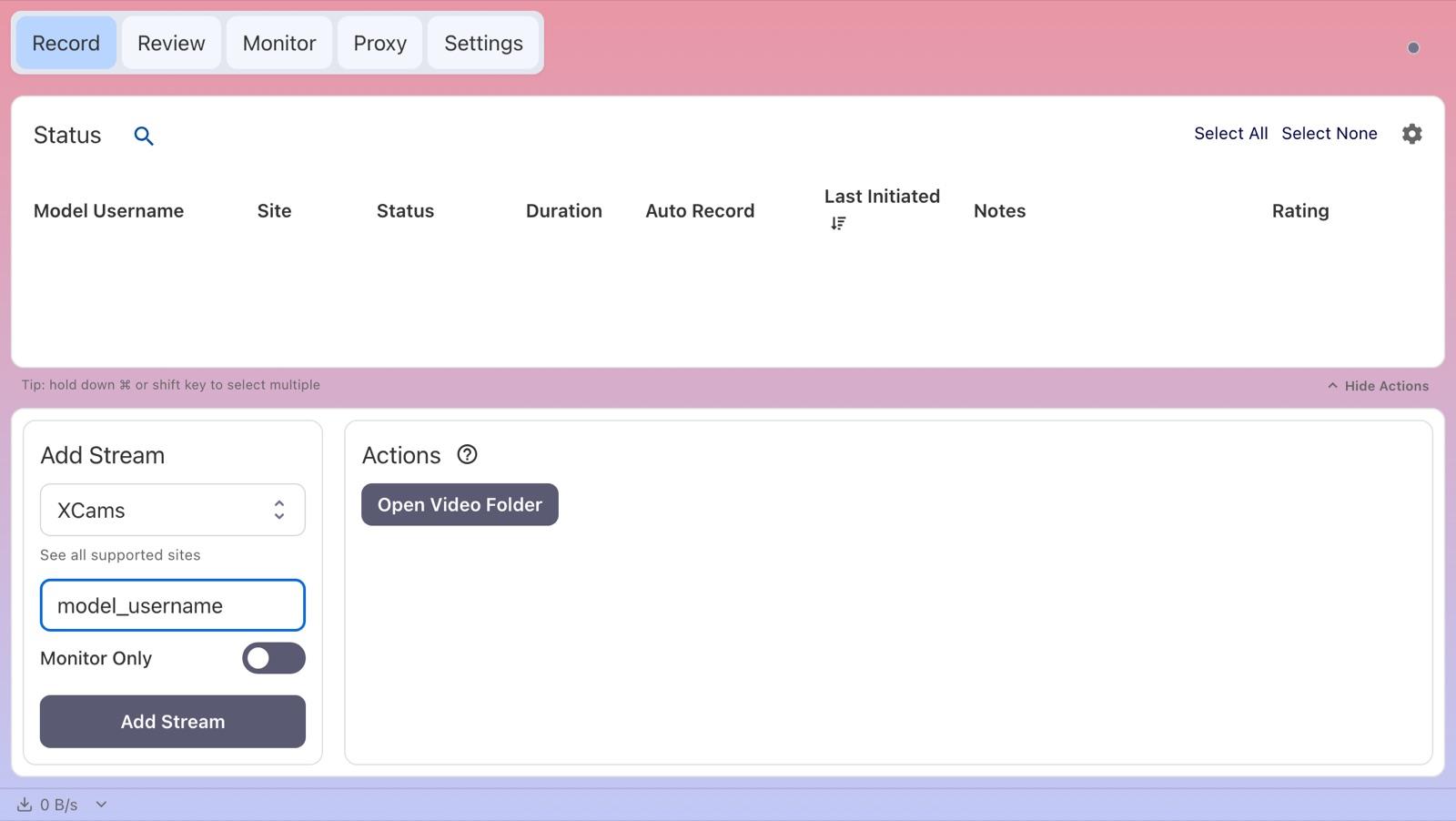
4. Record the show
XCams recordings take longer to start than on most sites: CaptureGem loads the room in a hidden XCams window and waits for the public video, so the status can show Activating for a minute or more. When the video plays, it changes to Recording. Otherwise the Status column tells you why:
- Private: the room is private, paid, blurred or otherwise restricted.
- Offline: the model is offline.
- Errored: the room could not be recorded, for example because XCams needs you to confirm your age, accept its terms or sign in first (see below).
Hover over a status to see more detail, including the reason for an Errored status.
Complete site access steps if prompted
If XCams needs age confirmation, acceptance of its terms, or sign-in before it plays the room, the status shows Errored with "Open the XCams window and complete the site access steps, then retry recording." and an XCams window opens. Complete those steps in that window, then retry recording from CaptureGem. Once a recording starts, CaptureGem closes the XCams window and records in the background.
The XCams window can also open after other start failures, so you can check what the room shows. Sign in inside that window when required; signing in with your usual web browser does not sign in CaptureGem's XCams window. If XCams says your free viewing time has ended, the status shows "XCams viewing access has ended. Sign in on XCams to continue." Sign in in the XCams window, then retry recording.
Free version and auto-record
The free version saves up to 5 minutes per recording and lets you add up to 10 models. It records a model when you add or start them while they are live, so start the recording again if the model was offline. Premium removes those limits and adds auto-record: select the model on the Record tab, choose Modify Auto Record under Actions, and pick Record Always. CaptureGem then starts recording whenever the model comes online and restarts after a disconnect. To do this for every model you add, turn on Auto Record All Newly Added Models in Settings.
Open the Monitor tab to see live previews of everything you are recording.
5. Find your recording
When a recording ends, CaptureGem converts it into a video file; long recordings can take a little while. Open the Review tab to play, trim, tag or delete it, or click Open Video Folder on the Record tab. Recordings are saved as MP4 files by default. With Premium, each file is up to 60 minutes long by default, and auto-record starts the next file straight away. You can change the save location, the file length (Cap Video Segments at Duration (Minutes)) and the file container in Settings.
XCams notes and troubleshooting
- Room turns private or the model goes offline while recording: The recording stops with Errored, with a reason such as "browser RTC recorder failed: XCams room is private or restricted". The video captured until then is kept and converted as usual.
- "XCams video stopped delivering frames": The XCams player showed no new video for 30 seconds, so CaptureGem ended the recording. The video up to that point is kept. Check your connection and that the room still plays.
- Viewing limits: CaptureGem respects XCams' viewing limits and doesn't reset them. When access ends, sign in in the XCams window and explicitly retry recording.
- Quality: CaptureGem records the video the XCams player receives. To save disk space, set a limit for XCams under Max Resolution Per Site in Settings > Advanced Settings. Larger videos are scaled down when the recording is converted; smaller ones are never enlarged.
- XCams is missing from the selector: Update to CaptureGem 2.14.9 or later.
If a recording keeps failing, update CaptureGem, check that the stream plays in your browser, and ask in our Discord community. Premium members can also send a failed recording to support.