 CaptureGem
How to Record From StripchatVR: A Quick Guide
Reading time: 6 minutes
CaptureGem can record Stripchat VR (vr.stripchat.com) in two ways, depending on the kind of show.
Which method do I need?
- Public VR shows: add the model with CaptureGem's built-in StripchatVR site. It works on Free and Premium, and Premium can also record automatically whenever the model goes live in VR. This method also gives the best quality. See Record public Stripchat VR shows below.
- VR private shows that you start from your headset: use CaptureGem's proxy mode with Google Chrome on your computer. Recording from the Proxy tab requires CaptureGem Premium. See Record a VR private show from your headset below.
Record public Stripchat VR shows
1. Download or update CaptureGem
Download the latest CaptureGem, open the app, and choose an output folder in Settings.
2. Add the model as StripchatVR
In CaptureGem's Add Stream section, explicitly select StripchatVR in the site list first. Then type the model's username or paste their room link from vr.stripchat.com, such as https://vr.stripchat.com/cam/model_username. A model's VR username is the same as their regular Stripchat username, and it's the last part of the room link.
Stripchat and StripchatVR use the same web addresses. If you paste a link while another site is selected, CaptureGem picks regular Stripchat, which records the flat (non-VR) stream. Check that StripchatVR is selected before you click Add Stream.
Turn off Monitor Only if you want CaptureGem to save recordings, then click Add Stream.
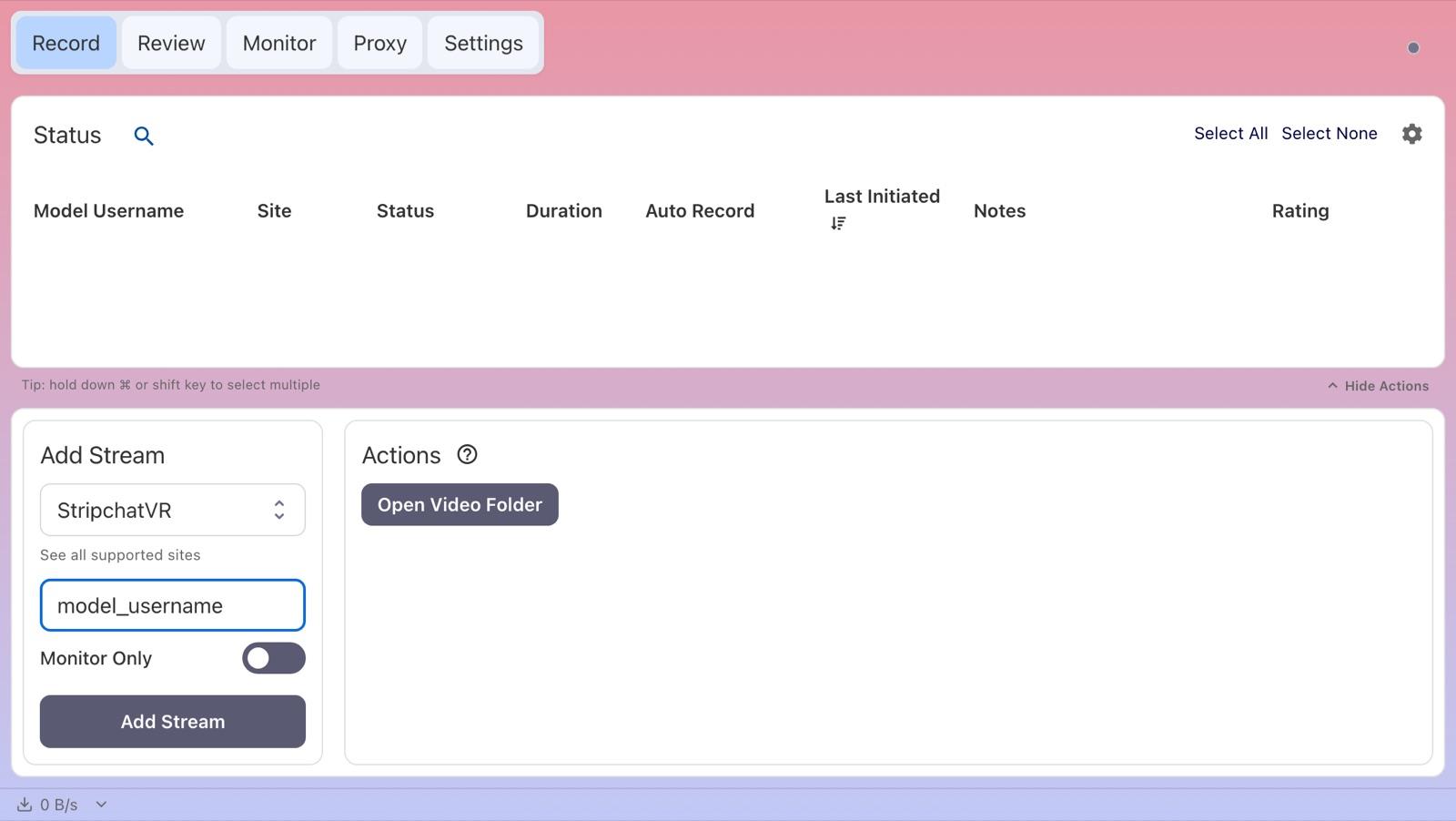
3. Let CaptureGem record
If the model is live in a public VR show when you add them, CaptureGem starts recording right away. Keep CaptureGem open; recording runs in the background. This method records public shows only. To record a VR private show you're in, use the proxy method below.
This method saves the model's original VR stream without converting it. In CaptureGem's testing, a public show recorded this way was 5760×2880, while proxy mode captured the same room at 4320×2160. The file name ends in _F120_LR, which tells VR players it's a side-by-side fisheye video. For public shows, use this method even if you have Premium.
Free version and auto-record
The free version saves up to 5 minutes per recording and lets you add up to 10 models. It records a model when you add or start them while they are live, so start the recording again if the model was offline. Premium removes those limits and adds auto-record: select the model on the Record tab, choose Modify Auto Record under Actions, and pick Record Always. CaptureGem then starts recording whenever the model comes online and restarts after a disconnect. To do this for every model you add, turn on Auto Record All Newly Added Models in Settings.
Open the Monitor tab to see live previews of everything you are recording.
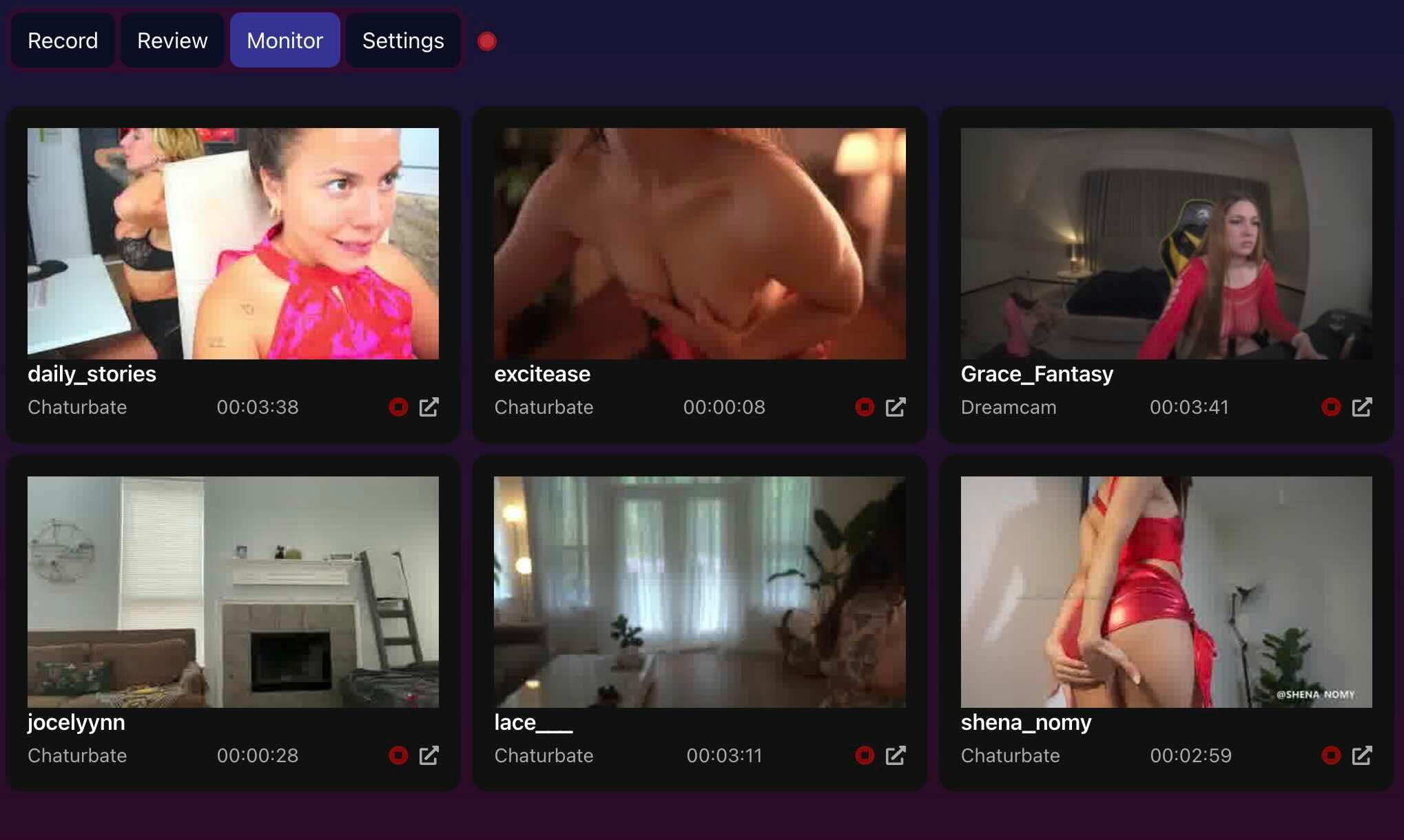
4. Find the recording
When the recording finishes processing, open Review to play it or open its folder. See Watching VR recordings below for player settings.
Record a VR private show from your headset
When you start a private show from your VR headset, the Stripchat VR room open in Chrome on your computer should also move into the private show, as long as Chrome is signed in to the same Stripchat account. In community testing, the headset and the computer joined the private show at the same moment. If that Chrome window runs through CaptureGem's proxy, CaptureGem sees the private stream and can record it.
Proxy mode records the video that the VR page plays in Chrome on your computer. That can be lower quality than the original stream, so use proxy mode for private shows only.
What you need
- CaptureGem Premium. Recording from the Proxy tab is a Premium feature. Use the latest version; recent releases include several proxy fixes for Stripchat.
- Google Chrome on your Windows, macOS, or Linux computer.
- A VR headset whose browser can open vr.stripchat.com, such as a Meta Quest.
- The same Stripchat account signed in on the headset and in Chrome, with enough tokens for the private show.
- A fast connection. During the show, the headset and the computer each download the VR stream, at about 10 Mbps each in CaptureGem's testing. Plan for at least 25 Mbps of download speed. A wired connection for the computer helps.
- Disk space. A VR recording takes about 3–5 GB per hour.
⚠️ VPNs can disrupt proxy mode
Turn off any VPN, and any VPN or proxy extension in Chrome, before you start Chrome with the proxy. A VPN or proxy extension replaces CaptureGem's proxy setting, so Chrome bypasses CaptureGem and nothing appears in the Proxy tab. Desktop VPN apps can also interfere with the connection between Chrome and CaptureGem. They also make security checks and "you have been blocked" pages from cam sites more likely.
If proxy mode stops working while a VPN is on, disconnect the VPN, fully close Chrome, and start Chrome with the proxy again.
Step 1: Start Chrome in proxy mode
Fully close Chrome, then start it through CaptureGem as described in the proxy guide for your computer:
- Windows: in the Proxy tab, click Open Scripts Folder and double-click start-chrome-with-proxy.bat. See the Windows proxy guide.
- macOS: in the Proxy tab, click Show Terminal Command and run the command in Terminal. See the macOS proxy guide.
- Linux: in the Proxy tab, click Show Terminal Command and run the command in a terminal. See the Linux proxy guide.
Some sites show a crossed-out "https" or a "Not secure" warning in proxy mode; that's expected. Stripchat's own pages pass through the proxy unchanged, so they usually show no warning. The reliable check is the Total Requests count in CaptureGem's Proxy tab: it should go up as you browse, which confirms Chrome's traffic is going through CaptureGem.
Step 2: Open the model's VR room in Chrome
- In the proxy Chrome window, sign in to Stripchat with the same account you use on your headset.
- Open the model's VR room, such as https://vr.stripchat.com/cam/model_username. On a computer, the page shows an Enter VR button. You don't need to click it: the VR stream starts loading as soon as the room opens.
- Optional: open stripchat.com in a second tab so you can type in the model's chat from your keyboard while you watch in the headset.
- Mute the tab so you don't hear the show from your computer as well as the headset. Right-click the tab and choose Mute site. Muting does not affect the recording; the audio is still saved.
The VR page chooses the video quality on its own; there is no quality setting on a computer. See The recording has short skips under Troubleshooting.
Step 3: Check that CaptureGem sees the stream before you pay
Switch to CaptureGem's Proxy tab. Within a few seconds, a row for the stream should appear with a doppiocdn hostname, such as media-hls.doppiocdn.net. A Path ending in _vr/ means it's the VR stream. The row's Bytes count should keep growing.
If no row appears, fix that now, before you spend tokens on a private show. See Troubleshooting below.
Step 4: Start the private show from your headset
Put on your headset, open the same model's room, and start the private show there. The room in Chrome on your computer should switch into the private show at the same time.
Tip: You can also click Record on the public stream's row before you start the private show. The private show may continue in the same stream, and recording early makes sure you catch the start. If a new row appears when the private show starts, click Record on that row too. Newer rows appear at the top. A recording you don't need is easy to delete afterwards.
Step 5: Record
In the Proxy tab, click Record on the row whose Bytes count is growing. Its status changes to Recording.
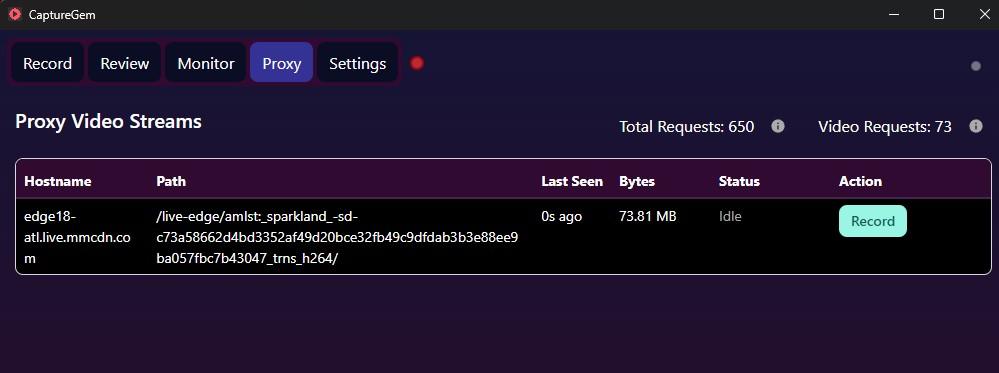
While the show runs:
- Keep the Chrome tab open and playing. Don't minimize the window, and don't let the computer sleep. CaptureGem records only what Chrome downloads.
- Keep CaptureGem running.
Step 6: Stop the recording and fix its details
- Click Stop Recording when the show ends. If the stream stops on its own, for example because you closed the tab, CaptureGem stops the recording automatically about a minute later.
- CaptureGem processes the video and adds it to the Review tab. Click the grey or green circle icon at the top right to follow its progress. If the quality changed during the show, CaptureGem may need to convert the video to one size. On a slower computer, that can take longer than the show itself.
- CaptureGem can't tell which model a Stripchat proxy recording came from. It saves the recording under Stripchat, with the stream's number as the model name, such as 254587768_vr. To fix this, open Review, click the three dots on the recording and choose Edit Metadata.
- Set Site to StripchatVR, enter the model's username in Model, check Recorded Time, and click Save Changes. The recording is then listed with the model's other VR recordings. The file name stays the same.
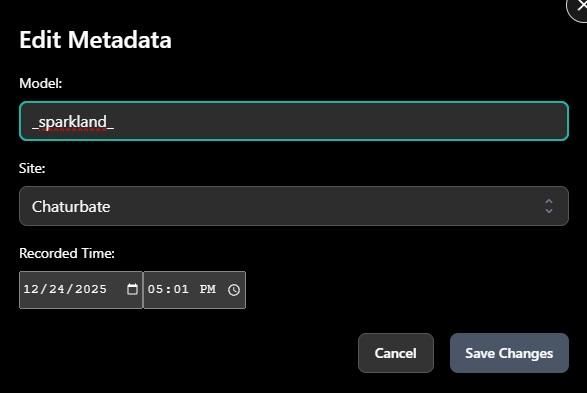
Watching VR recordings
VR recordings are side-by-side MP4 files whose names end in _F120_LR: a 120-degree fisheye picture with the left and right eye next to each other. Play them in any VR video app that can open files from your computer. In HereSphere (available on Steam), open the advanced settings, choose Fisheye and side-by-side (SBS), set the field of view to 120 degrees, and set the aspect ratio to auto so the picture isn't stretched.
In a normal video player you'll see two round images next to each other, one for each eye. That is the raw VR picture, not a broken file.
Proxy recordings are the same kind of side-by-side fisheye video, but their file names don't end in _F120_LR. Players that read the format from the file name won't detect it, so choose fisheye, side-by-side (SBS) and 120 degrees in the player yourself.
Troubleshooting
Nothing appears in the Proxy tab
- Fully close Chrome first, then start it with the proxy script or command. A Chrome window opened any other way bypasses CaptureGem.
- Turn off your VPN, and any VPN or proxy extension in Chrome. See the warning above.
- Use Google Chrome, and make sure the stream is actually playing in the tab.
Chrome didn't switch into the private show
- Check that Chrome is signed in to the same Stripchat account as your headset.
- Open the model's vr.stripchat.com room in Chrome, and let it play, before you start the private show in the headset.
- If the private show has already started, try reloading the room in Chrome.
"proxy recording is only available for premium users"
Recording from the Proxy tab requires CaptureGem Premium. Public VR shows can still be recorded on the Free plan with the built-in StripchatVR site, up to 5 minutes per recording.
Stripchat shows a security check or "you have been blocked"
Update CaptureGem to the latest version, which sends Stripchat's own pages straight through without changing them. Turn off your VPN, then reload the page.
The recording has short skips
The VR page in Chrome switches between quality levels by itself, for example between 4320×2160 and 2880×1440. Video fetched right at a switch can't be decoded, so CaptureGem leaves it out. In CaptureGem's testing, that skipped about 3–7 seconds in 90 seconds of recording, in pieces of about half a second.
- Use a fast, stable connection, and avoid other large downloads while you record.
- Keep the Chrome tab open and the computer awake.
- For public shows, use the built-in StripchatVR site instead. It records the original stream without these skips.
A public VR recording doesn't start
- Check that the model is in a public show and broadcasting in VR: open https://vr.stripchat.com/cam/model_username with their username.
- If Stripchat is blocked on your network, see the Stripchat guide for settings that help. StripchatVR uses the same settings.
A public recording saved the flat stream instead of VR
The model was added with Stripchat instead of StripchatVR. Add the model again with StripchatVR selected, and remove the Stripchat entry if you don't want flat recordings.
The recording doesn't appear in Review
Wait for processing to finish. Click the grey or green circle icon at the top right to see its progress. Also check your output folder in Settings and make sure you have enough free disk space.
If a recording fails, Premium users can send it to CaptureGem support from the app. You can also ask in our Discord server.
Proxy guide: Windows · macOS · Linux · All supported sites · Download CaptureGem