 CaptureGem
How to Record From LiveJasmin: A Quick Guide
Updated
Record public LiveJasmin shows with the CaptureGem desktop app on Windows, macOS, and Linux. You can record as a guest, but LiveJasmin stops guest viewing after about 90 seconds, so sign in to LiveJasmin inside CaptureGem for longer recordings.
1. Install CaptureGem
CaptureGem is free to download and use, and you don't need an account. Download CaptureGem for your computer, or update to the latest version, then:
- Windows: right-click the .zip file, choose Extract All, and run CaptureGem.exe from the extracted folder, not from inside the zip. If Windows SmartScreen warns you, click More info, then Run anyway. When Windows Firewall asks, allow CaptureGem.exe and recorderd.exe.
- macOS: open the .dmg file, drag CaptureGem into your Applications folder, and open it from there.
- Linux: extract the archive, make the AppImage executable with
chmod +x, and start CaptureGem with the included launcher.sh.
Keep the CaptureGem window open while recording LiveJasmin. CaptureGem records LiveJasmin in a hidden, muted browser window inside the desktop app, so the standalone recorder can't record LiveJasmin on its own.
2. Copy the room link
Open the model's room and copy the address from your browser's address bar, such as https://www.livejasmin.com/en/chat/model_username. The username is the part after chat/. Links that end in #!chat/model_username work too.
3. Add the stream
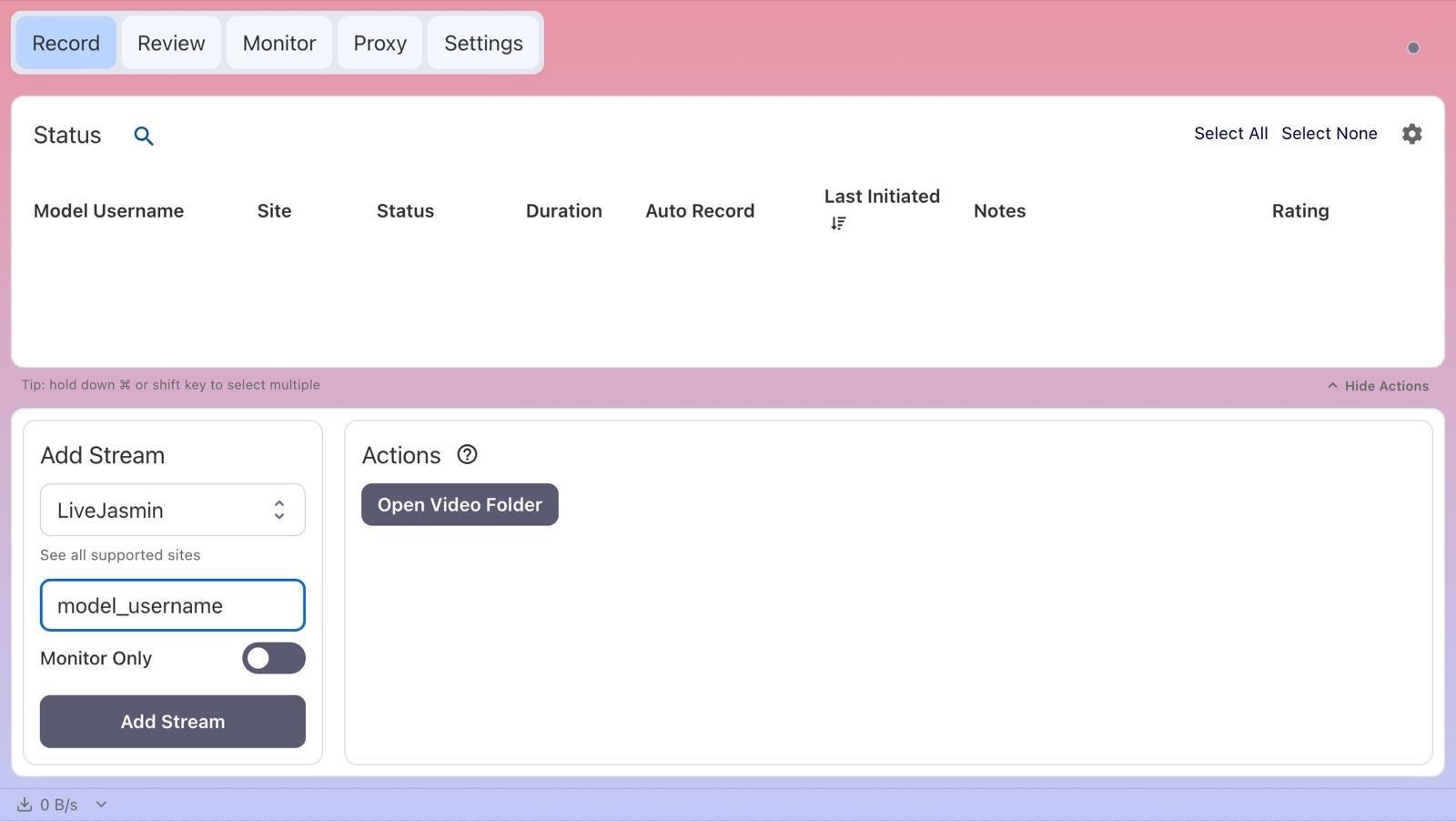
- On the Record tab, paste the link into Enter URL or Username in the Add Stream panel. CaptureGem selects LiveJasmin for you. You can also choose LiveJasmin under Select Website and type just the username.
- Leave Monitor Only off so the stream is saved.
- Click Add Stream.
4. Record the show
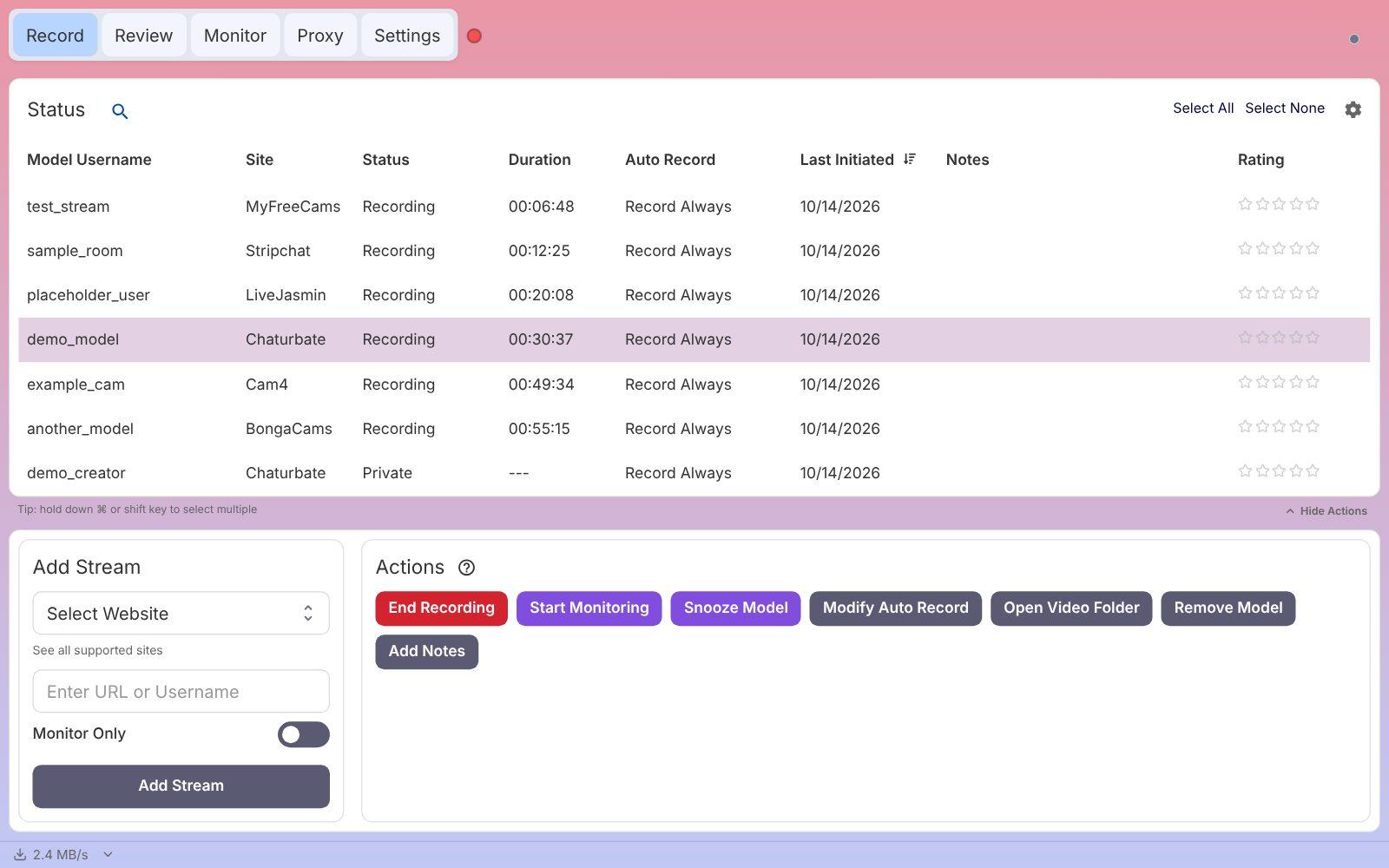
LiveJasmin recordings take longer to start than on most sites: CaptureGem opens the room in a hidden browser window and waits up to 45 seconds for video, so the status shows Activating for a while. When the video arrives, it changes to Recording. Otherwise the Status column tells you why:
- Private: the model is in a private show.
- Offline: the model is offline or away.
- Errored: the room could not be recorded, for example "LiveJasmin did not start streaming within 45 seconds", or the guest viewing limit was reached (see below).
Hover over a status to see more detail, including the reason for an Errored status. Select a model to see its Actions, such as End Recording and Open Video Folder.
Sign in for longer recordings
The first time a LiveJasmin recording starts while you aren't signed in, CaptureGem shows Sign in for longer LiveJasmin recordings. It appears once each time you open CaptureGem.
- Click Sign in to LiveJasmin. A LiveJasmin window opens inside CaptureGem.
- Sign in to your LiveJasmin account in that window, then close it.
- Restart your LiveJasmin recordings so they use the signed-in session.
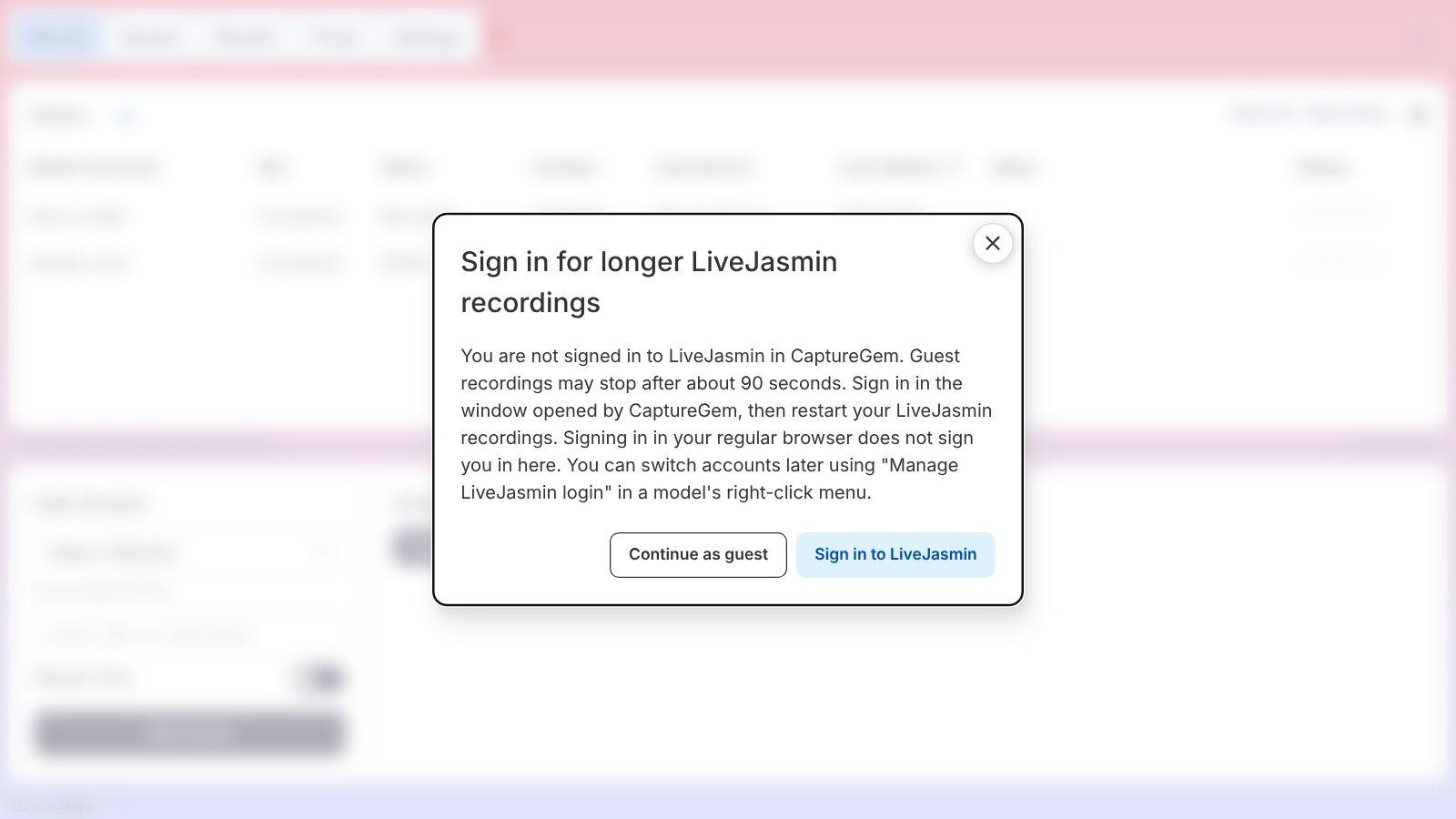
- Continue as guest keeps recording without an account, but LiveJasmin allows a guest only about 90 seconds of viewing, and restarting the recording doesn't reset that limit.
- To sign in later or switch accounts, right-click any LiveJasmin model on the Record tab and choose Manage LiveJasmin login.
- Signing in with your regular web browser doesn't sign you in to CaptureGem. LiveJasmin decides how long a sign-in lasts; if the notice appears again, sign in again.
Try it free, then upgrade for full shows
The free version is enough to check that recording works on your computer before you pay for anything.
- Free: saves up to 5 minutes per recording and lets you add up to 10 models. It records a model only if they're live when you add or start them, so start the recording again if the model was offline.
- Premium: removes those limits and adds auto-record, which starts recording whenever the model comes online and restarts after a disconnect. See Premium plans.
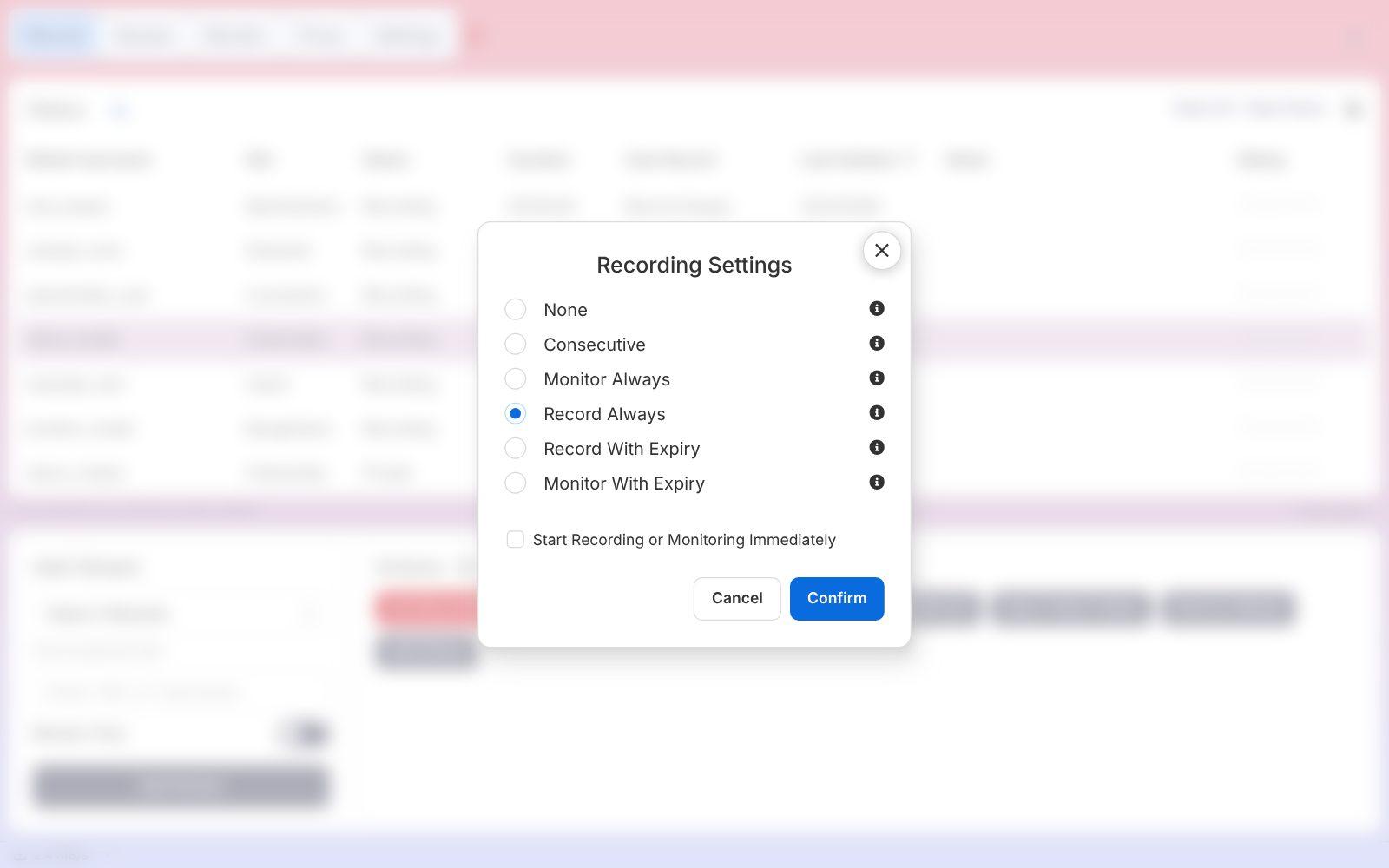
Auto-record (Premium): select the model on the Record tab, click Modify Auto Record under Actions, choose Record Always, and click Confirm. To auto-record every model you add, turn on Auto Record All Newly Added Models in Settings.
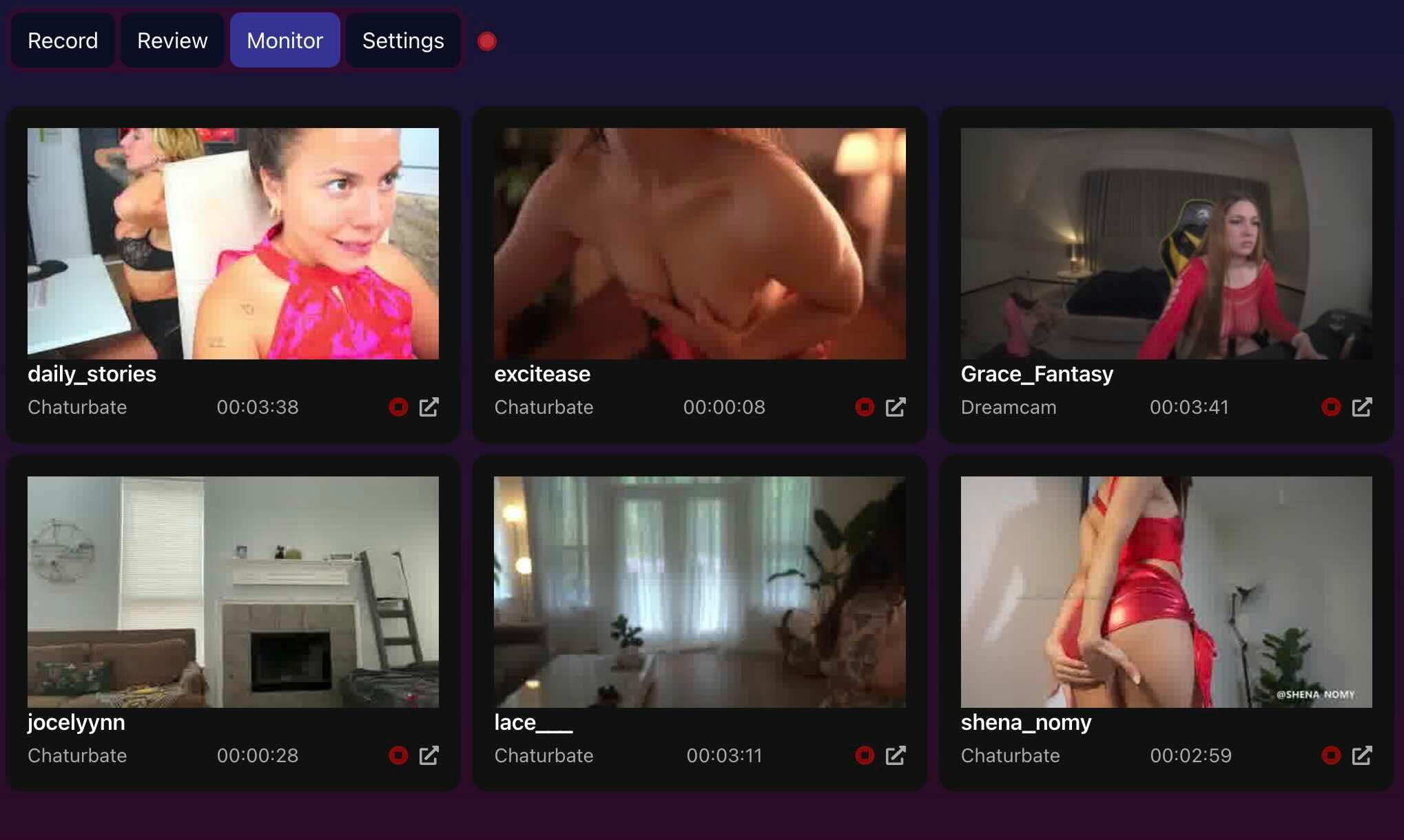
Open the Monitor tab to see live previews of everything you are recording.
5. Find your recording
When a recording ends, CaptureGem converts it into a video file; long recordings take a little while. Then:
- Open the Review tab to play, trim, tag or delete it.
- Or click Open Video Folder on the Record tab to open the folder it was saved in.
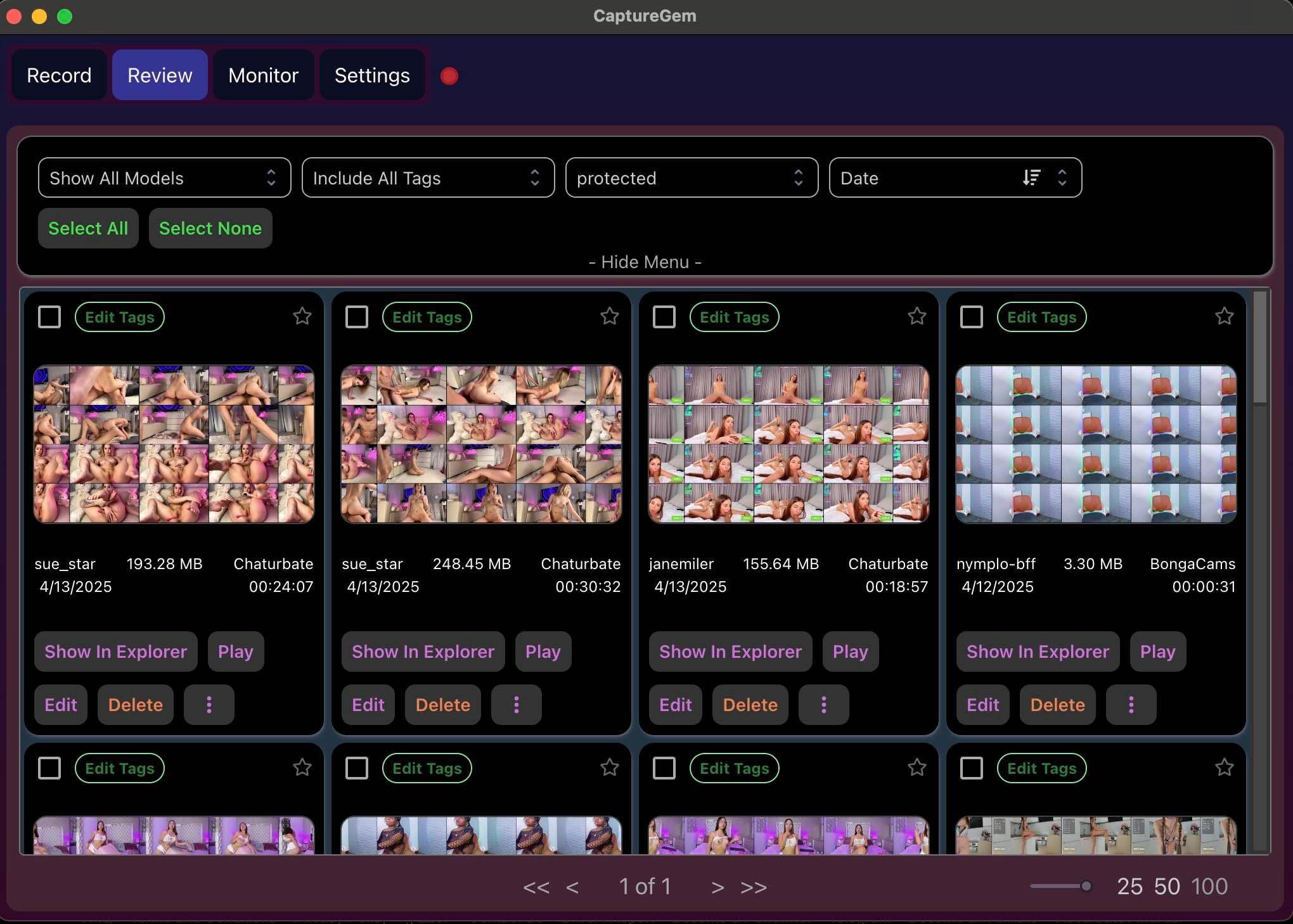
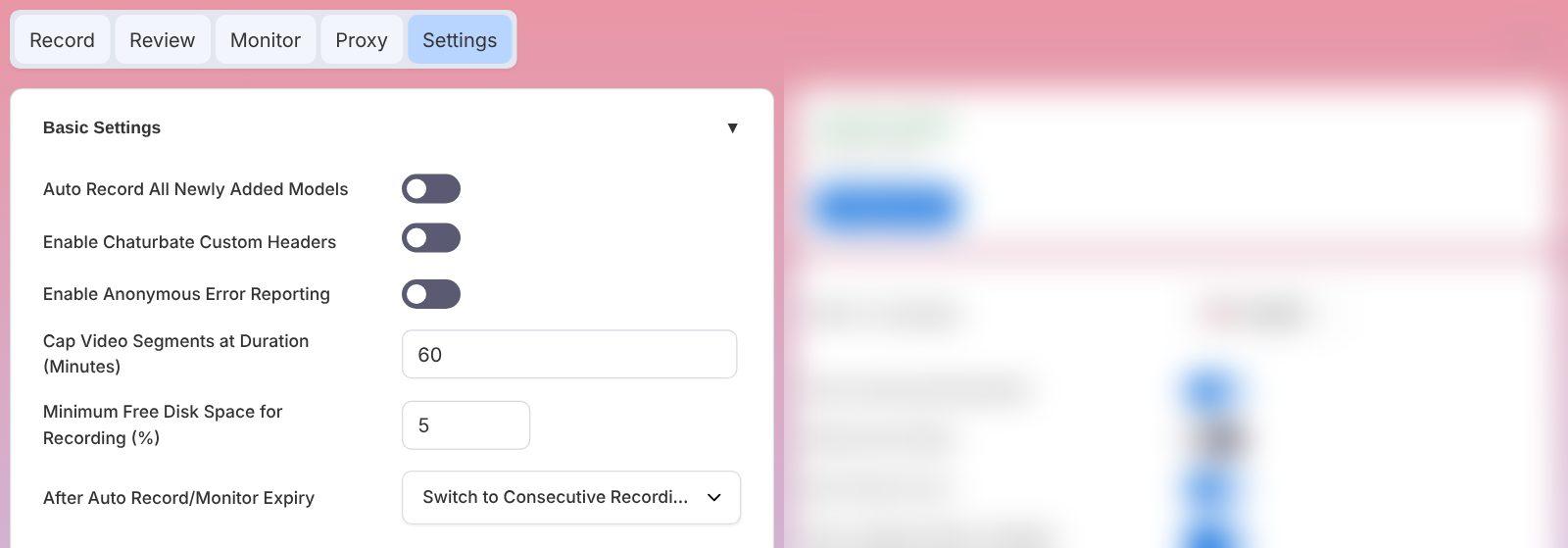
Recordings are saved as MP4 files by default. With Premium, each file is up to 60 minutes long by default, and auto-record starts the next file straight away. You can change the save location, the file length (Cap Video Segments at Duration (Minutes)) and the file container in Settings.
LiveJasmin notes and troubleshooting
- "LiveJasmin reached its guest viewing limit of about 90 seconds…": You were recording as a guest and LiveJasmin stopped the video. The video captured until then is kept and converted. Right-click a LiveJasmin model, choose Manage LiveJasmin login, sign in, and restart the recording.
- Recording ends when the show does: If no video arrives for 30 seconds, for example because the model ended the show or went into a private show, the recording ends normally and the video is kept and converted as usual.
- Offline models keep restarting or you hear music: Update CaptureGem to the latest version. It recognizes offline and private models within about 12 seconds and keeps the hidden LiveJasmin page silent.
- "LiveJasmin did not start streaming within 45 seconds": No public video arrived in time. Check that the show plays in your browser, then try again.
- Quality: CaptureGem asks LiveJasmin's player for its best quality, up to 2160p. To save bandwidth and disk space, set a limit for LiveJasmin under Max Resolution Per Site in Settings > Advanced Settings. CaptureGem requests 480p, 720p, 1080p, 1440p or 2160p; limits below 480p use 480p. A model's stream may not offer every quality.
If a recording keeps failing, update CaptureGem to the latest version, check that the stream plays in your browser, and ask in our Discord community. Premium members can also send a failed recording to support.