CaptureGem
CaptureGem vs OBS Studio for Recording Cam Shows
OBS Studio is one of the best free programs ever made for recording and streaming video, so it is natural to reach for it when you want to save a cam show. But OBS records what is on your screen, while CaptureGem records the show itself. That one difference decides which tool will serve you better.
We make CaptureGem, so weigh this comparison accordingly. OBS is excellent software, and for plenty of jobs we would recommend it ourselves.
The short answer
- Use OBS Studio to produce your own videos: live streams, tutorials, gameplay, webcam and microphone recordings, or anything with overlays and scenes.
- Use CaptureGem to record cam shows, especially several at once, automatically and at the quality the site actually sends.
- Plenty of people use both, and they don't get in each other's way.
At a glance
- Price: OBS is free and open source under the GPL. CaptureGem is free to try, with Premium for unlimited recording.
- Platforms: both run on Windows, macOS and Linux.
- How it records: OBS captures a window, the screen or a browser source and encodes it again. On most sites, CaptureGem saves the site's source stream directly, with no second encode.
- Quality: with OBS, quality depends on the player size and whatever the page shows. CaptureGem saves the top quality the site offers.
- Starting and stopping: OBS records when you press the button, unless you add plugins or scripts. CaptureGem Premium starts when a model comes online.
- Several shows at once: OBS records one composited output by default. CaptureGem records several models at once even in the free version, and Premium takes as many as your bandwidth allows.
- After the show: OBS leaves you a file. CaptureGem adds a searchable library, an editor and a way to combine recordings.
What OBS Studio does brilliantly
OBS is built around scenes and sources. You can mix display and window capture, browser sources, media files, cameras and audio inputs, then polish the result with an audio mixer and filters, transitions, hotkeys and studio mode. It streams and records, offers formats such as MKV, MP4, hybrid MP4 and MOV, and lets you choose the encoder, bitrate, resolution and frame rate. A huge plugin ecosystem fills nearly every gap.
If you are creating content, OBS is hard to beat at any price.
Why screen recording is a poor fit for cam shows
Capturing a cam show with OBS usually means opening the room in a browser, pointing a window or display capture at it and pressing Record. That works for a quick clip, but it comes with trade-offs:
- You record the page, not the stream. Chat, tip menus, pop-ups, buffering and a small player end up in your video unless you crop and resize carefully.
- The video is encoded twice. The site has already compressed the stream. OBS takes what is on screen and your CPU or GPU encodes it again, which costs resources and can never add back detail.
- The browser has to stay open. Minimize the window, cover it or let the computer sleep, and the recording can suffer or stop.
- You have to be there. OBS has no idea when a model goes online. Timed or condition-based recording takes plugins or scripts you set up yourself, and even then nothing knows whether a show has started.
- One show at a time. Recording several rooms means juggling extra sources, scenes or OBS instances.
How CaptureGem records instead
CaptureGem connects to the site's source stream and saves it directly at the top available quality, with no screen capture and no extra render-and-re-encode step. (XCams, ManyVids and Superlive are the exceptions: CaptureGem captures those through its built-in browser and converts them to MP4 afterwards.) There is no browser window to keep in front, and chat overlays never get into the file. Recordings are saved as MP4 by default, or MKV if you prefer, and long shows are split into 60-minute segments by default.
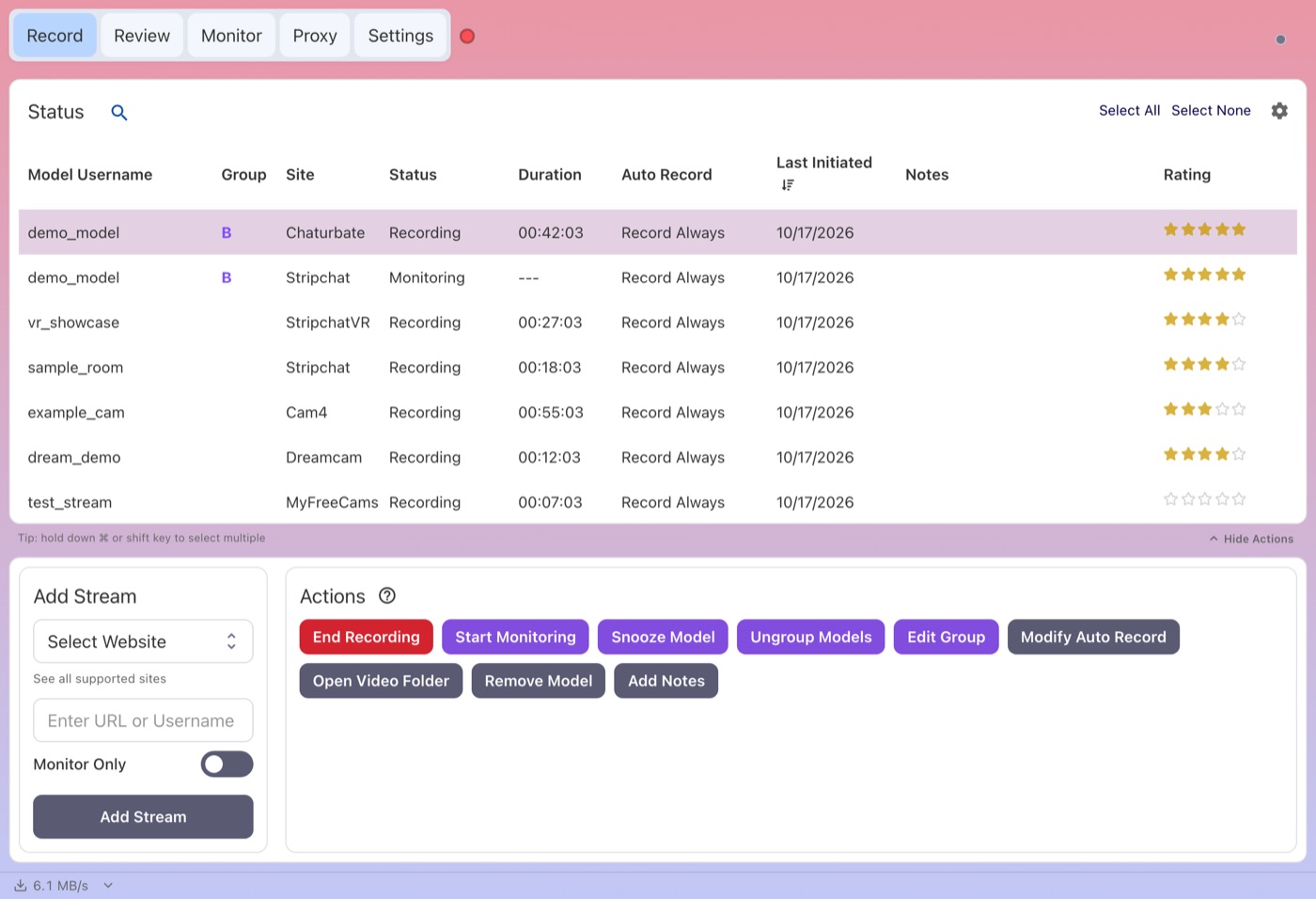
Seven rooms on six sites in one list, each saving its own source stream (placeholder usernames).
It covers 24 built-in sites, including the VR sites StripchatVR, Dreamcam and SexLikeReal, plus 130+ more platforms through Streamlink. VR recordings are side-by-side 120° fisheye MP4 files for headset players such as HereSphere, which a flat screen capture can't give you.
Recording that starts on its own
With Premium, auto-record starts a recording when a model comes online and restarts it after disconnects or network timeouts. Modes include Record Always, Monitor Always, Consecutive and versions with an expiry, so you decide how hands-off you want to be. You can even turn on auto-record for every model you add.
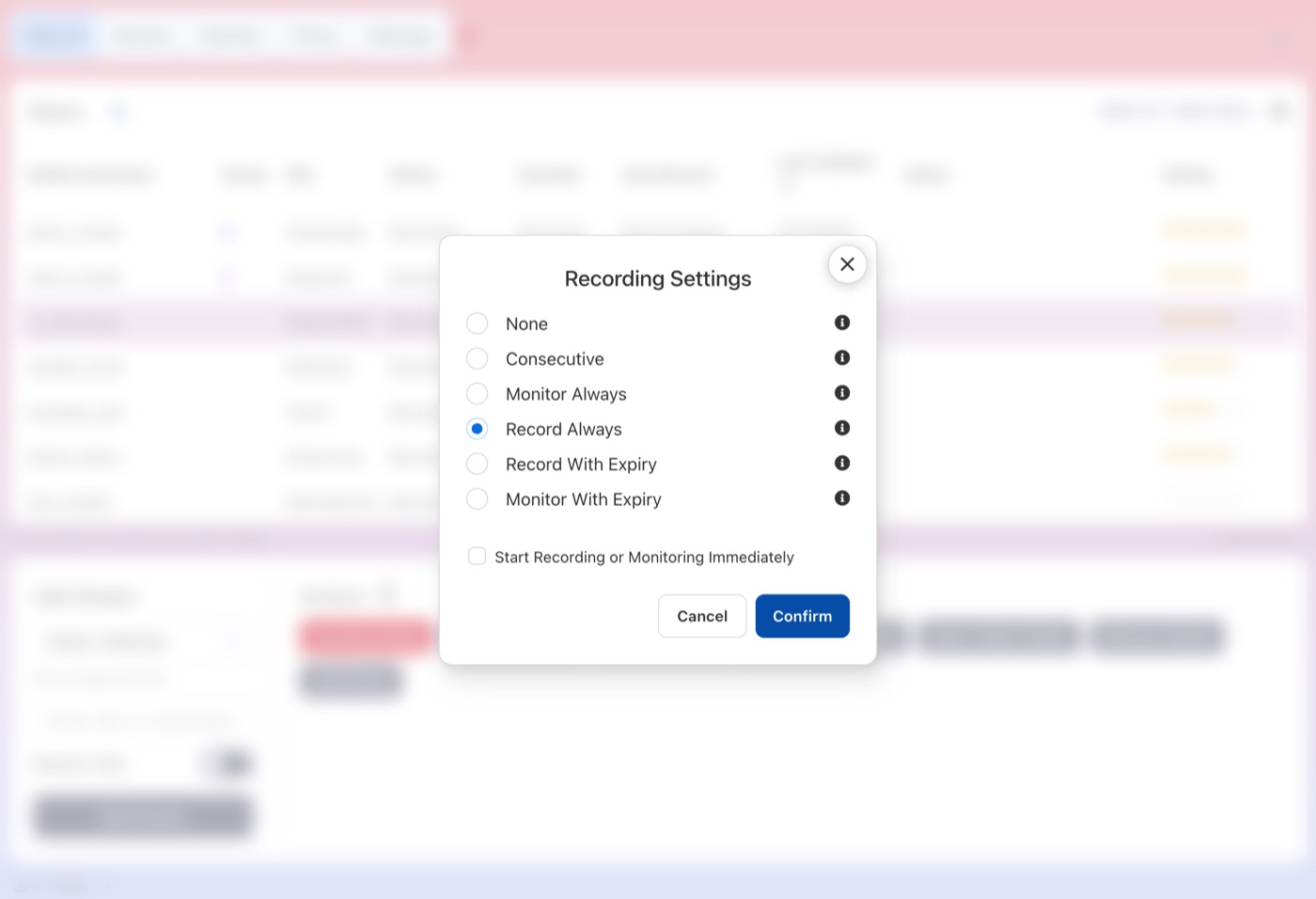
Pick an auto-record mode once, and CaptureGem waits for the show so you don't have to.
Watching without a second stream
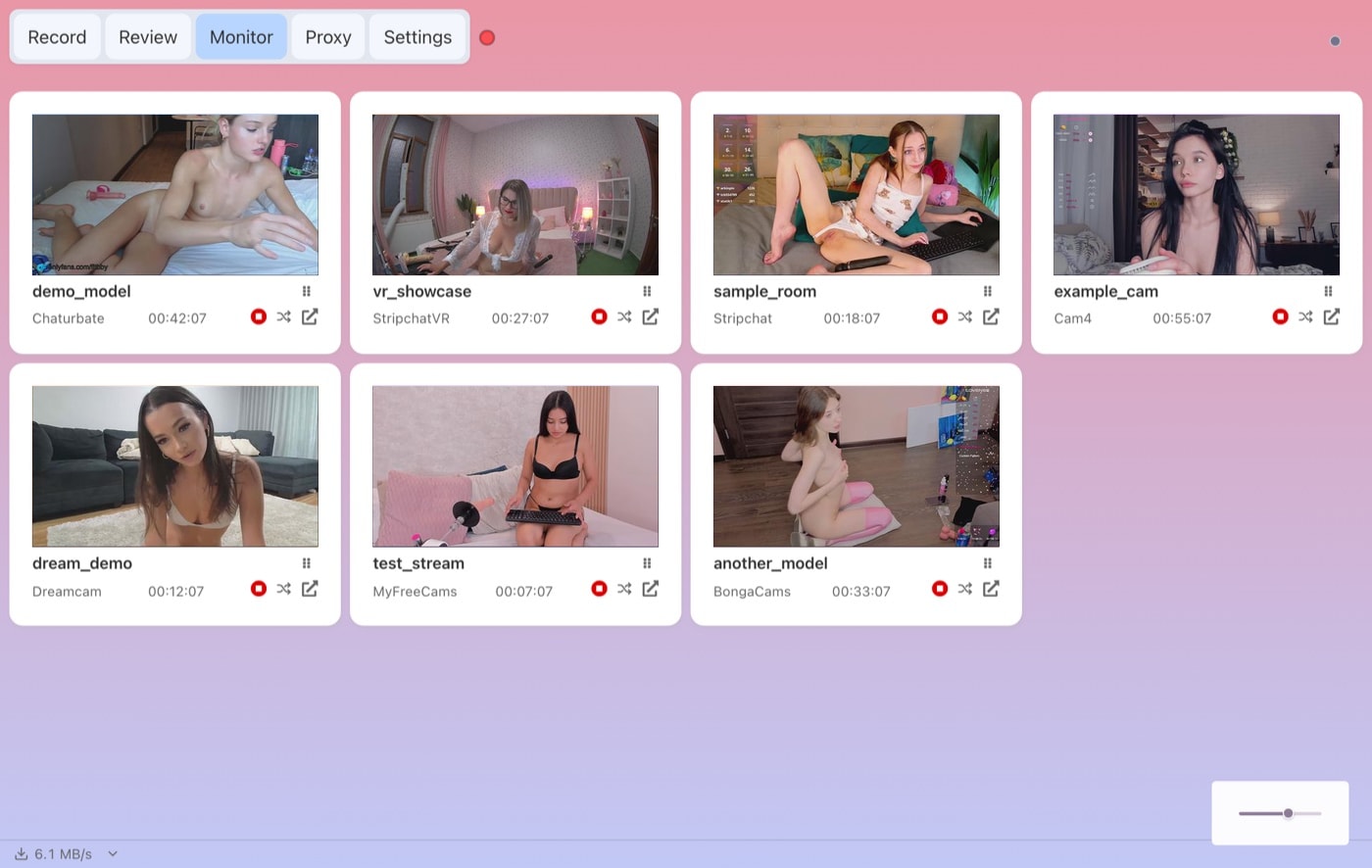
The Monitor tab shows a live preview tile for every active recording without downloading a second copy of the stream. With OBS, the show has to be playing on your screen the whole time anyway.
A library for everything you saved
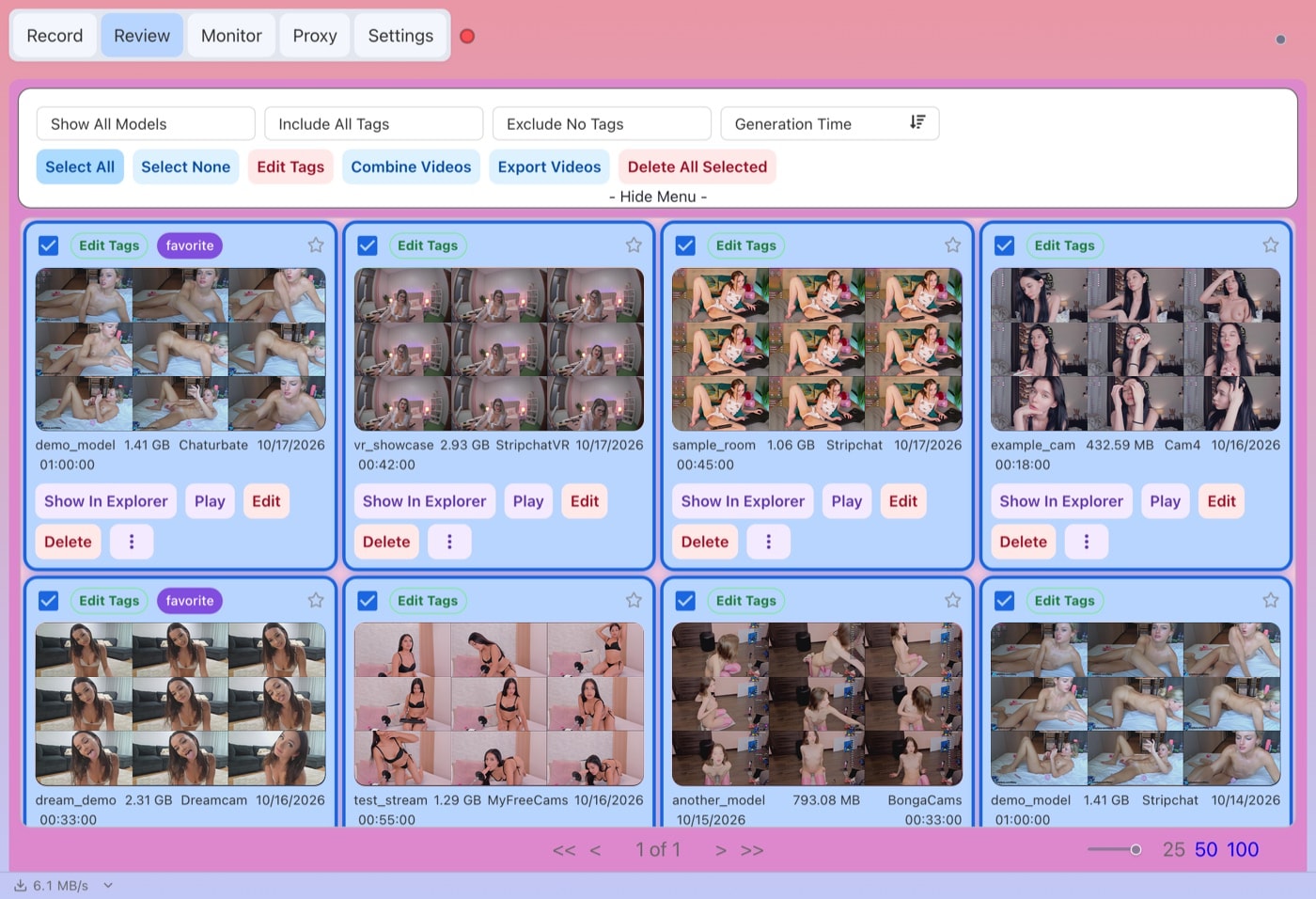
OBS hands you a file in a folder. CaptureGem's Review tab generates an image grid for each recording, so you can see what happened in a show at a glance. Filter by model or tag, sort, mark favorites, protect recordings from deletion, and select several to combine or export. A built-in editor lets you keep or cut sections and save the result as a new file.
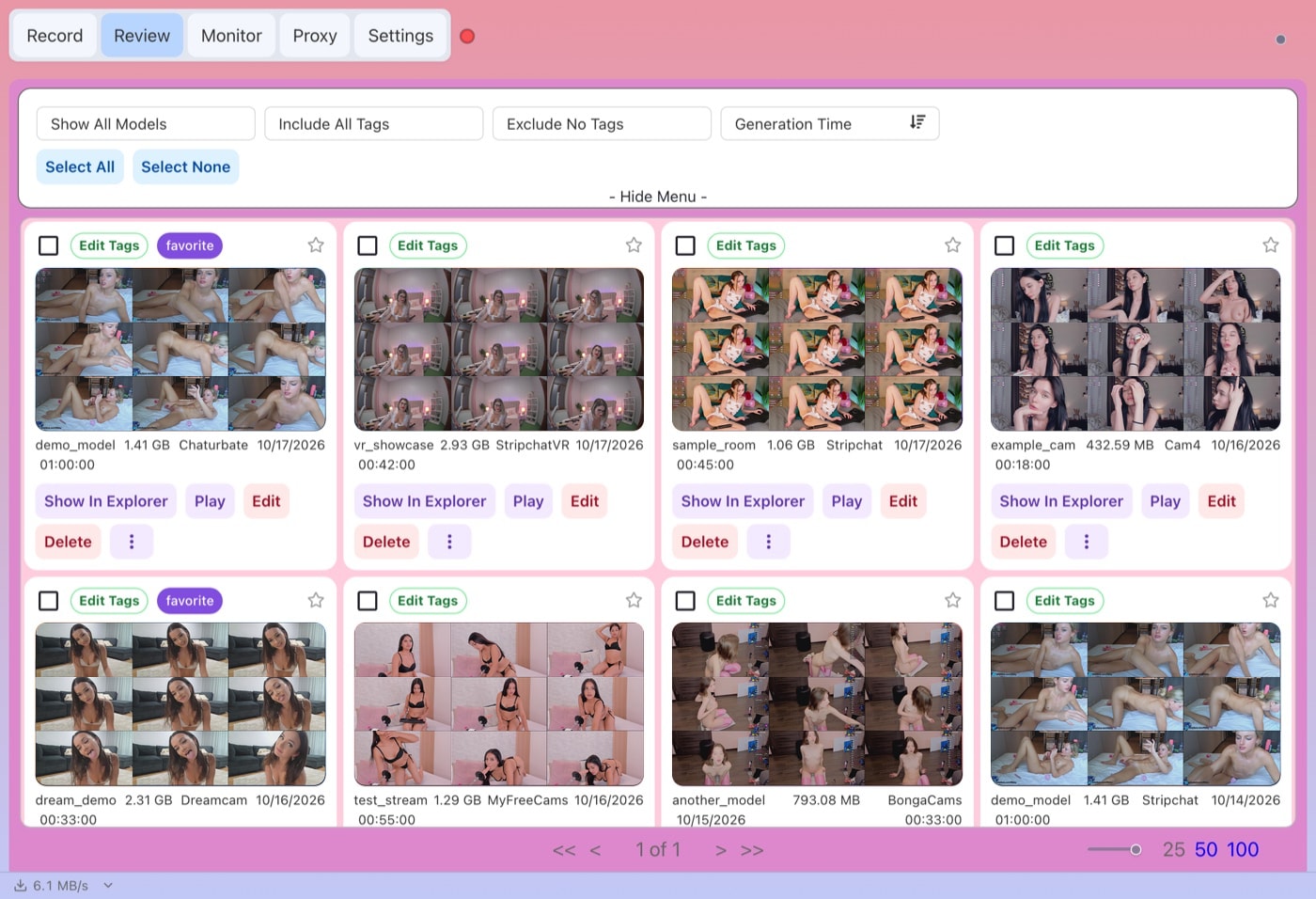
Each card in the Review tab shows an image grid with the recording's site, size, date and duration.
Can you use both?
Yes, and many people do. Keep OBS for live streaming, webcam or microphone recordings, tutorials and anything you produce yourself. Let CaptureGem handle the cam shows you want to save. Because CaptureGem doesn't capture your screen, it can keep recording in the background while you use OBS for something else; your internet bandwidth is the resource they share.
Free vs Premium
OBS is completely free. CaptureGem's free version lets you add up to 10 models, saves up to 5 minutes per recording and records a model only if they're live when you add them or press start. That is plenty to compare a CaptureGem file with an OBS capture of the same room and judge the difference yourself.
Premium removes those limits and adds auto-record, unlimited simultaneous recordings, cross-site model groups, Proxy mode for private shows you're watching, and complimentary CamTrove Premium.
Which should you choose?
Choose OBS Studio if:
- you are making your own content, streaming or adding overlays
- you only need the occasional short clip and don't mind watching while it records
- you want one free tool for many kinds of recording
Choose CaptureGem if:
- you want shows saved at the quality the site sends, without chat or pop-ups in the frame
- you want recordings to start when a model goes live, even while you're away
- you follow several models, possibly on different sites, and want them recorded at the same time
- you record VR shows
- you want to browse, trim and combine recordings afterwards
Our verdict
OBS is the right tool for creating video. For saving cam shows, a screen recorder makes you do the work that CaptureGem does on its own: watching for the show, keeping a window in front and cleaning up the result. CaptureGem records the stream rather than your screen, handles many rooms at once and organizes everything afterwards. Download CaptureGem for free, try it on the rooms you follow and see the difference for yourself. Once you're set up, the settings overview explains every option.
Record only streams you have the right to save, and respect performers, site terms and local law.