 CaptureGem
How to Send a Failed Recording to CaptureGem Support
When a recording fails to convert, or stops in a way you can't explain, CaptureGem Premium can send that recording's data straight to CaptureGem support from the app. Support receives the logs, settings and status of the recording and, if you choose, its temporary video data. You don't need to zip folders or share download links. This feature is available in CaptureGem 2.14.11 and later.
What you need
- CaptureGem Premium on the email address you confirm (see the next point). Without it, the upload window still opens, but it shows a Premium feature message and Upload stays disabled.
- A confirmed email address. The support case is opened for the email address you signed in with, from either a CaptureGem or a CamTrove account, and support replies to that address. The first time you send something, the app asks you to confirm the address with a code. It asks again if the confirmation expires or no longer matches the email address CaptureGem is signed in with. The window shows which address the case will be opened for.
- An internet connection for the upload itself. Large uploads continue in the background, so you can keep using CaptureGem. Keep CaptureGem running until the upload finishes: an interrupted upload doesn't resume, so you would have to start a new one. One upload runs at a time.
Where to send a recording from
You can start an upload from three places in the app.
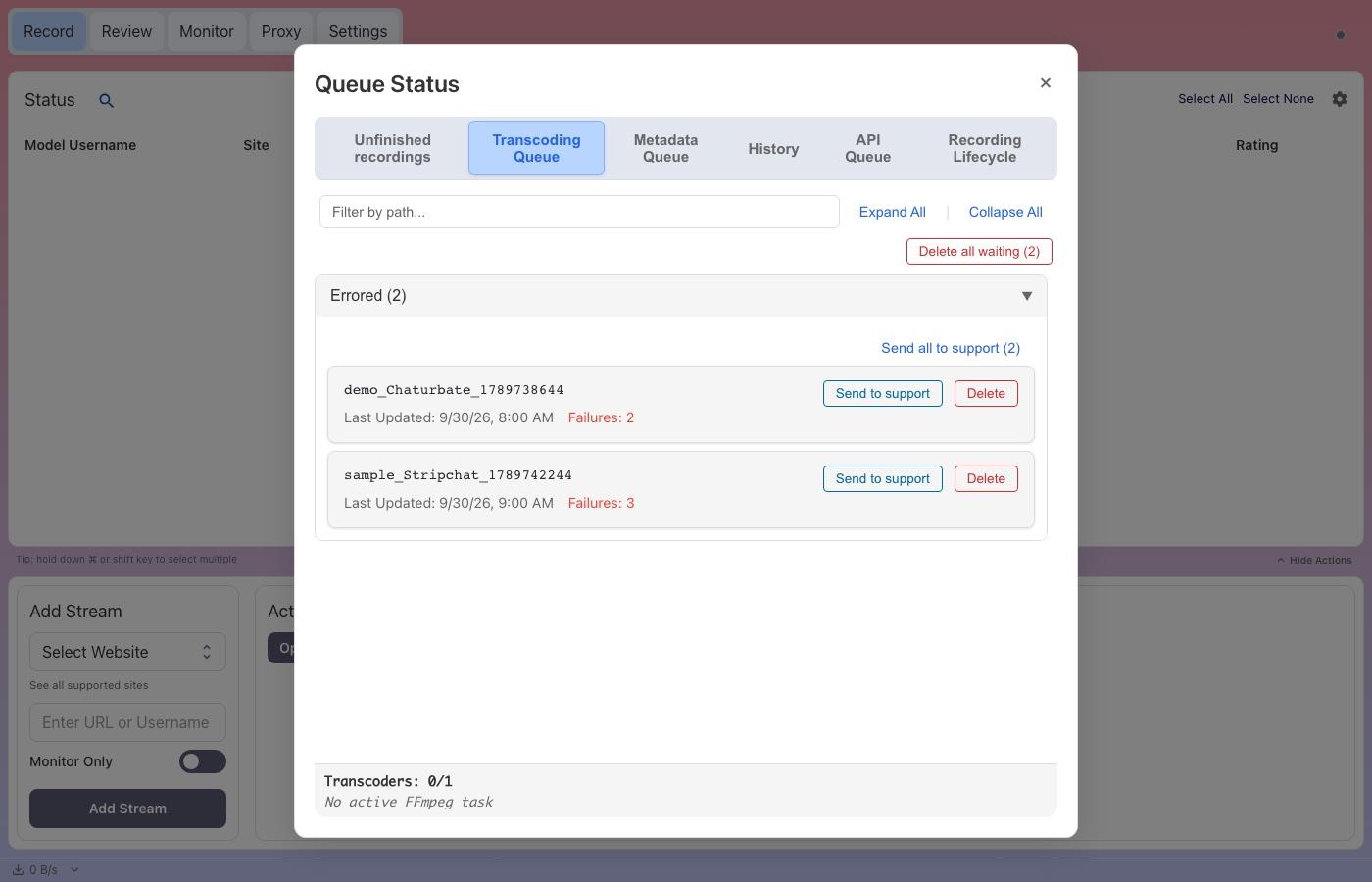
Transcoding queue
- Click the small status dot in the top-right corner of CaptureGem (its tooltip says Transcoding Status) to open Queue Status.
- Open the Transcoding Queue tab and expand the Errored group.
- Click Send to support next to a recording. When the group has two or more recordings, Send all to support (N) sends them in one upload. One upload holds at most 20 recordings, so with more than 20 the button reads Send first 20 to support.
Recordings in the Queued and Transcoding groups have a Send logs to support button instead. See Recordings that are still being processed below.
Unfinished recordings
- In Queue Status, open the Unfinished recordings tab.
- Click View Temp Files on the recording.
- Click Send to support.
Review tab
- Open the Review tab and find the video.
- Open the video card's menu and choose View Temp Files.
- Click Send to support. This works even if the temporary files have already been cleaned up; the logs and the video's details are still sent.
Recordings that are still being processed
A recording that is waiting to convert, converting or still recording can be sent as logs only, so nothing interrupts it:
- In the Transcoding Queue, click Send logs to support on its row.
- In Unfinished recordings, click Send to support as usual. The window then says This recording is still being processed.
Support receives the logs, the recording's place in the queue, the conversion's current step and output, and a list of its files, but no video. A video in the Review tab whose temporary files are being processed can't be sent yet; CaptureGem tells you that it is being processed. Try again when it has finished or failed.
Sending the upload
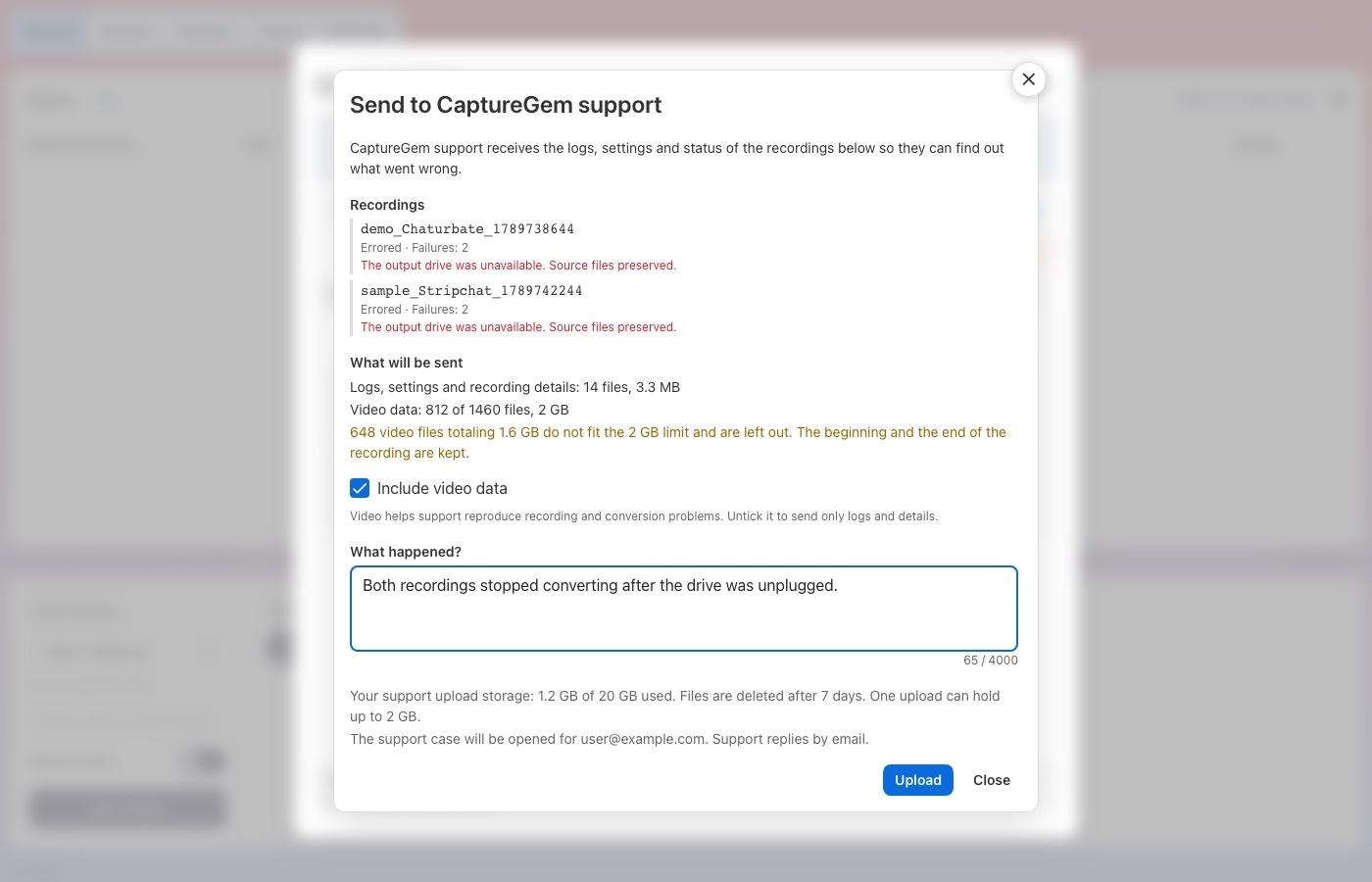
The Send to CaptureGem support window shows:
- the recordings you are sending, with their status and last error;
- What will be sent: the size of the logs, settings and recording details, and of the video data;
- your support storage and the email address the case will be opened for.
Then:
- Leave Include video data ticked if you can. Video helps support reproduce recording and conversion problems. Untick it on a slow or metered connection to send only logs and details.
- Optionally describe What happened?, for example "the recording stopped after 10 minutes and never finished converting".
- Click Upload.
The window shows the progress. You can close it and the upload continues in the background. Reopen it from the same place to check on it, or click Cancel upload to stop it; a cancelled upload is deleted. When the upload finishes, the window shows your support case number (for example CG-1A2B…) and you usually get a confirmation email with the same number.
What is sent, and what is not
An upload can contain:
- the recording's temporary folder (video segments, playlists and recording details), and its audit and metadata files;
- the end of CaptureGem's logs, such as the transcoding activity and event logs;
- your CaptureGem settings file, keeping only the affected models;
- a summary of the recording's state, errors and the app version.
Before anything leaves your computer, CaptureGem removes private information:
- from the settings: your email address, license, saved Chaturbate request headers, cam site login names, and every setting whose name suggests a password, token, secret, cookie, API key, authorization, license, webhook or proxy. Your home folder is shown as
~in its paths; - log lines that could contain passwords, cookies, tokens or login details are removed, and email addresses in the other lines are replaced with
[email]; - the part of web links after the
?, where cam sites put access tokens, is removed from logs and playlists.
Video data is sent unchanged. One upload holds up to 2 GB. If a recording is larger, CaptureGem keeps the beginning and the end of the recording and lists what it left out.
How long your files are kept
- Uploaded files are stored privately while your case is open, then deleted 7 days after it closes, with a maximum of 60 days from upload creation. You can delete them sooner from your account page.
- Each account can have up to 20 GB of support uploads at a time. Space is freed when uploads are deleted.
- You can start up to 5 uploads in any 8 hours and 10 in any 24 hours. Your account can have 2 uploads in progress at once, for example from two computers; CaptureGem itself runs one at a time. Cancelled and interrupted uploads count toward these limits.
Following up on your case
Support replies to your case by email. To add details, reply to that email and keep the case number in the subject.
If you confirmed your email in CaptureGem with your CaptureGem account, you can also follow your cases on your account page under Support Requests while signed in with that account. It shows each case's status (Uploading, Pending, Answered or Closed), your support storage, and when the files will be deleted. Click Delete files now to remove an upload's files early; your case stays open. Uploads sent while CaptureGem was signed in with a CamTrove account aren't listed there.
Troubleshooting
- "Premium feature": uploads require an active Premium subscription on the email address you confirmed. Check which address the window shows; if it isn't the one with your subscription, confirm the right one. If you just renewed, restart CaptureGem so it picks up your license.
- "Confirm your email address": enter the code sent to your email address. If no code arrives, check your spam folder and that you are signed in with the right email.
- "Your support storage is full": delete files from an older case on your account page to free space. This works for uploads sent with your CaptureGem account confirmed, while you are signed in to capturegem.com with it. Otherwise, wait until older files are deleted: open cases keep their uploads until 7 days after they close, up to the 60-day limit.
- "You can send up to 5 support uploads every 8 hours" (or 10 a day): the message says how long until you can send another. Add more details to an existing case by replying to its email instead.
- "This recording is being processed": the recording is still recording or converting. Try again once it has finished or failed, or send its logs from the Transcoding Queue or Unfinished recordings as described above.
- "Another support upload is still running": only one upload runs at a time. Wait for it to finish, or cancel it.
- "Could not reach the CaptureGem support server": check your internet connection and try again. A firewall or VPN may block the upload.
- "A file changed on disk while it was being uploaded": wait until the recording is idle and try again.
- "The upload is larger than 2 GB or has more than 5000 files": CaptureGem trims video data automatically. If you still see this message, untick Include video data and try again.
If an upload can't be sent at all, email [email protected] with your app version and what happened. Do not delete the recording's temporary folder until support has looked at it.