 CaptureGem
How to Add Chaturbate Custom Headers to CaptureGem
Reading time: 5 minutes
Chaturbate Custom Headers let CaptureGem use your signed-in Chaturbate browser session. You only need them if Chaturbate makes you sign in or verify your age where you live. In that case, Chaturbate rooms show Errored in CaptureGem, and the status tooltip suggests adding Custom Headers.
You don't need Custom Headers to avoid rate limits. Since CaptureGem 2.14.11, CaptureGem paces its Chaturbate checks and, when Chaturbate asks it to slow down, pauses and retries automatically; the status shows Rate Limited until then. If you're using an older version, update instead.
Keep your request private. The copied request contains your Chaturbate session cookies, which work like a password for your Chaturbate account. Don't share it or post screenshots of it.
This guide uses Google Chrome. Other browsers based on Chromium, such as Microsoft Edge and Brave, have the same developer tools.
1. Sign in to Chaturbate
- Open https://chaturbate.com/ in Chrome.
- Sign in to your Chaturbate account, and complete age verification if Chaturbate asks for it.
- Check that you can open a model's room and watch the stream in your browser.
2. Open Chrome's developer tools
- Right-click anywhere on the page and select Inspect, or press Cmd + Option + I (Mac) or Ctrl + Shift + I (Windows/Linux).
- Click the Network tab.
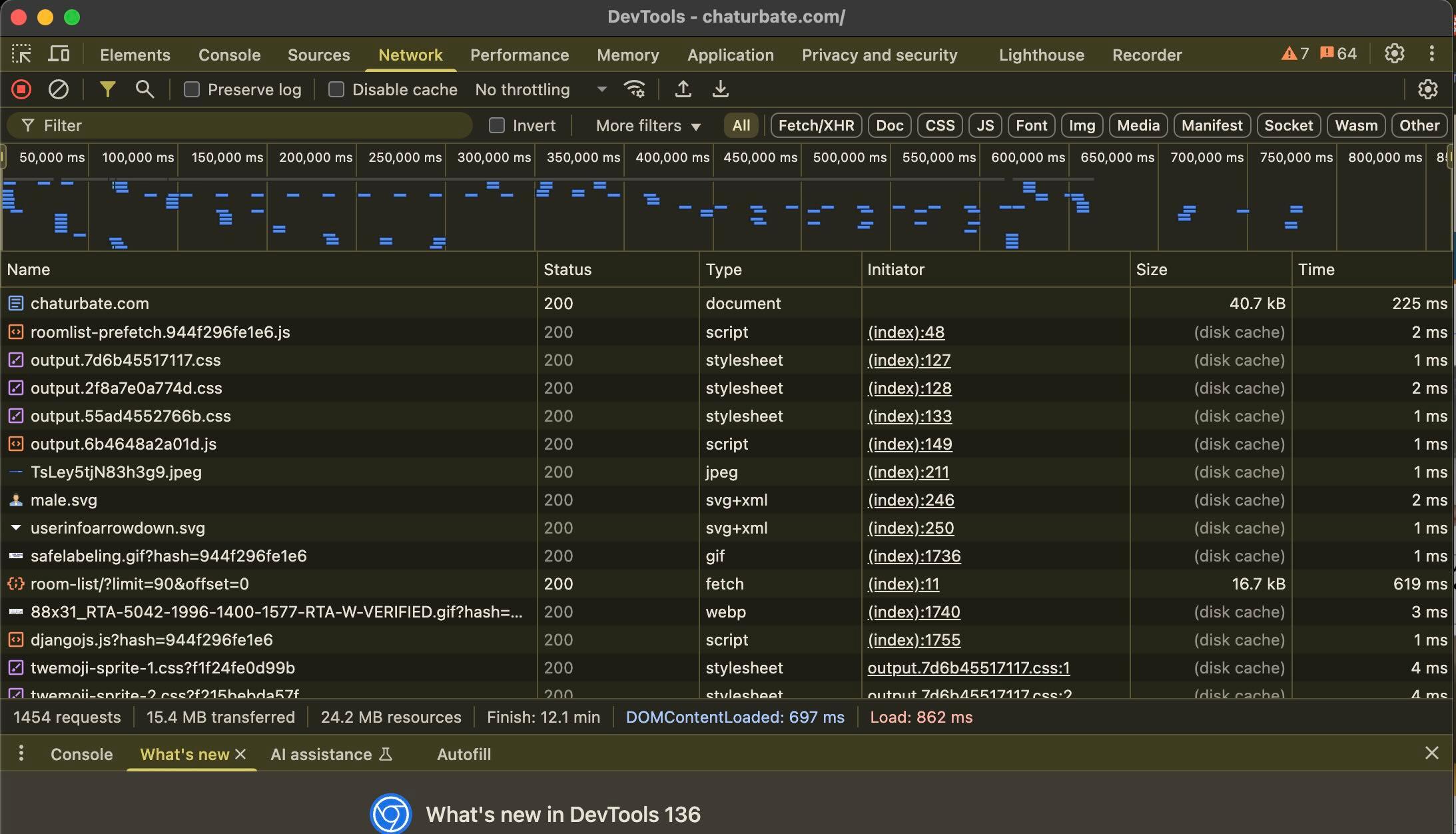
3. Record the page's network requests
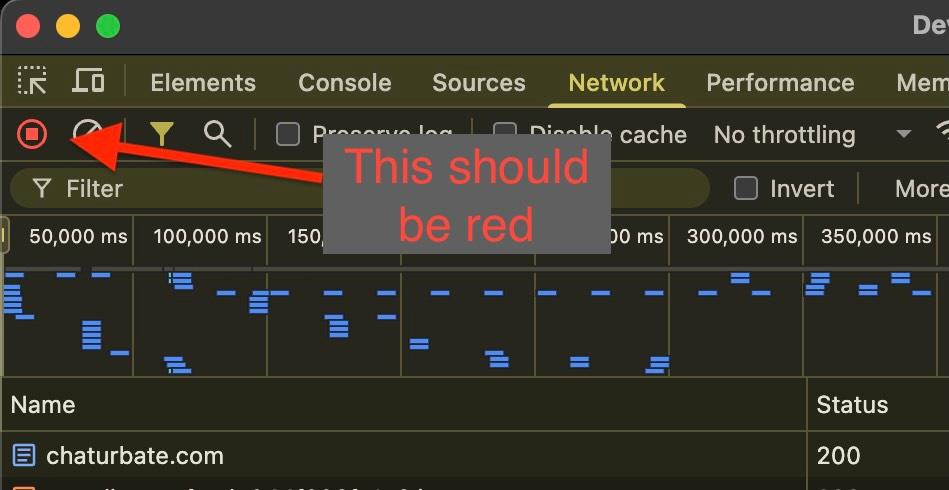
- Make sure the record button at the top left of the Network tab is red, so requests are being recorded.
- Reload the page (Cmd + R or Ctrl + R).
- Scroll to the top of the list of requests.
4. Copy the request as cURL
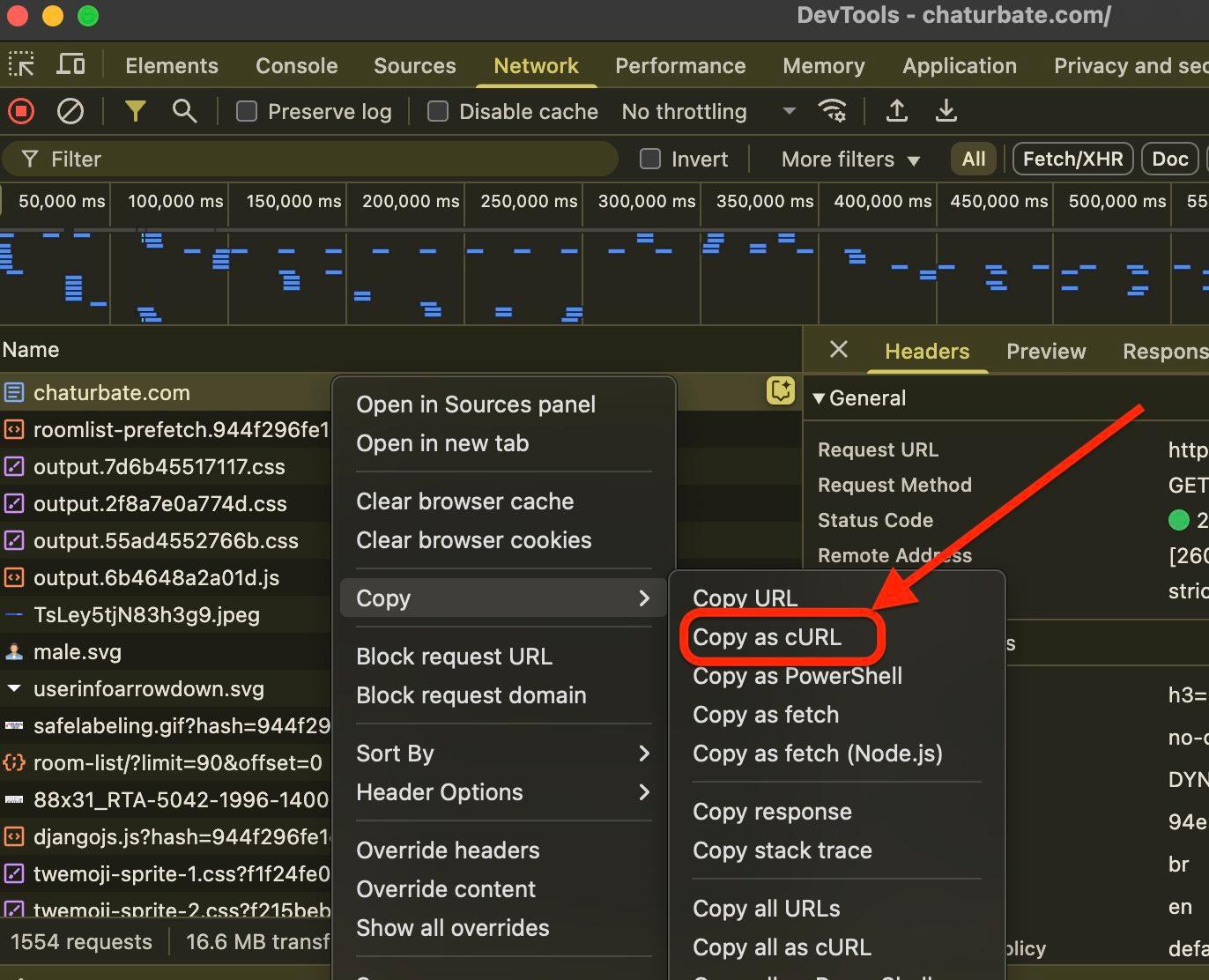
- Click the first request, named chaturbate.com (a
GETrequest of type document). - Right-click it and choose Copy > Copy as cURL (bash) on Windows, or Copy > Copy as cURL on Mac and Linux.
Windows users: choose Copy as cURL (bash), not Copy as cURL (cmd). CaptureGem only accepts the bash format.
5. Paste the request into CaptureGem
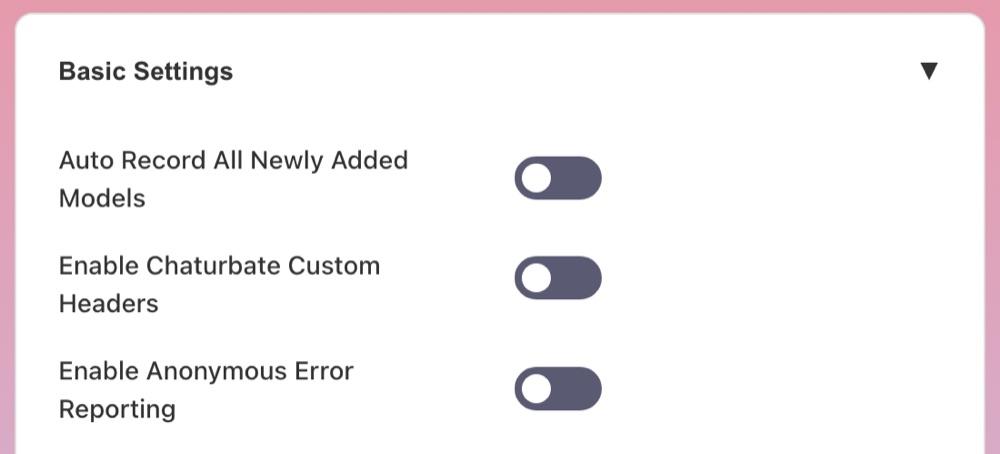
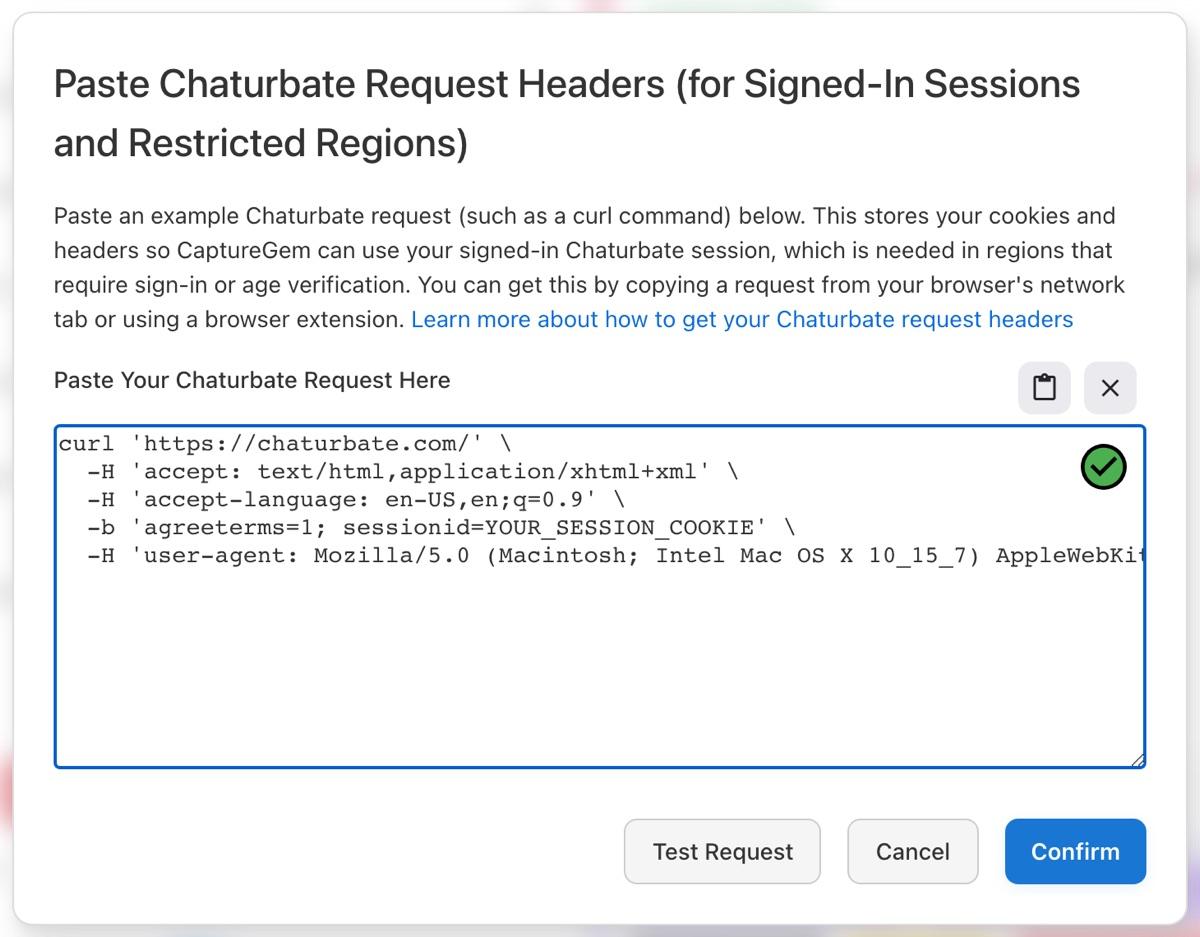
- In CaptureGem, open Settings and turn on Enable Chaturbate Custom Headers under Basic Settings.
- The Paste Chaturbate Request Headers window opens. Paste the copied request into Paste Your Chaturbate Request Here. A green check mark means CaptureGem accepts its format: it must start with
curl, be in bash format, use a chaturbate.com address, and include headers and your cookies. - Optionally, click Test Request to check that the request works.
- Click Confirm, then Save Changes.
CaptureGem now uses your session's headers and cookies for its Chaturbate checks and downloads. Start the recording again, or wait for auto-record to retry.
Updating or removing your headers
- Expired session: Chaturbate session cookies expire. If Chaturbate rooms show Errored with "your saved Chaturbate Custom Headers may have expired", sign in to Chaturbate in Chrome again, copy a fresh request, click Edit Chaturbate Request Headers in Settings, paste it, and save.
- Removing them: Turn off Enable Chaturbate Custom Headers and save. This deletes the saved request.
For more help recording Chaturbate, see How to Record from Chaturbate, or ask in our Discord server.